Post a ledger transaction
Use Workspace → Ledger → Post transaction to record a manual debit-and-credit transaction. Post saves the entry directly to the ledger, so complete your organisation's review before selecting it.
- For
- Finance users authorised to enter or correct ledger bookings.
- Requires
- Post ledger transactions permission, active detail accounts, a confirmed base currency, and applicable currency rates.
- Available when
- Your permission groups expose Post transaction in Workspace's Ledger menu.
- Before you begin
- Confirm the booking date, account codes, currencies, amounts, required references, and whether an automatic posting already exists.
- Expected result
- One balanced transaction is saved with the intended accounts and references and can be checked in Transactions.
Open in Finsaku: post a ledger transaction
Prepare the entry
For ledger concepts, automatic bookings, and a manual currency-conversion example, follow Configure and use the general ledger.
Confirm the ledger configuration before the first posting. Recording the first transaction locks the ledger base currency. A posting user does not need permission to administer accounts or rates, but those dependencies must already be correct.
Check Transactions for an existing entry, including automatic loan bookings. Posting a manual entry does not create a loan payment, alter payment allocations, or change the loan schedule. Use the loan's Payments action when the task is to record money against a loan.
Enter booking lines
- Open Workspace → Ledger → Post transaction. The form starts with two empty lines.
- Set Booking date. It initially shows today and determines which currency rate applies.
- On each line, select Account, choose DR or CR, and enter Amount in the account's currency.
- Check Base Amount and select any required Party and Contract references. In this shared screen, Contract identifies the loan.
- Use Add booking line for additional lines. The row's Delete control removes an unsaved line; at least two lines must remain.
- Wait for currency conversion to complete and review every line before posting.
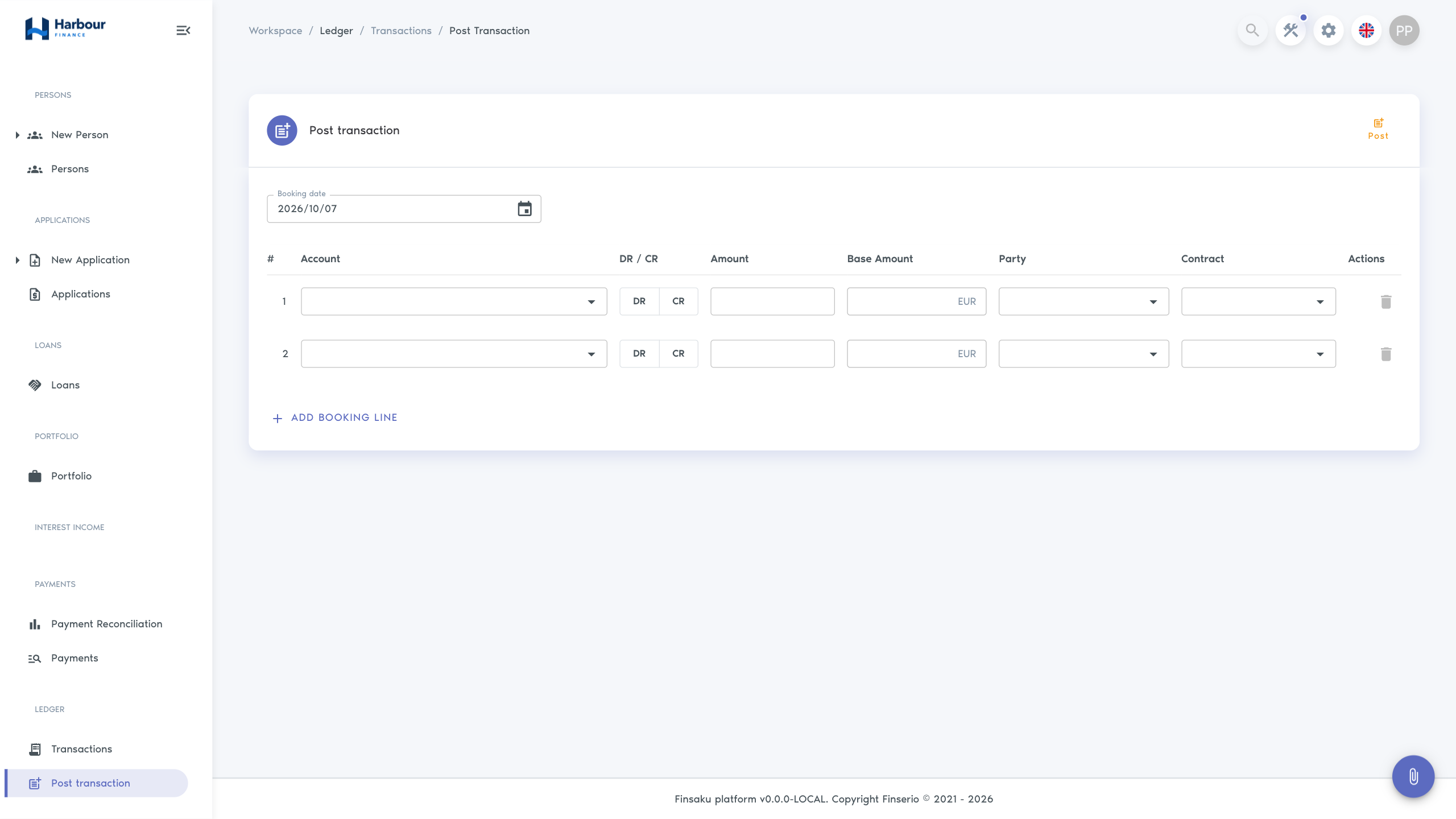
| Field | How to use it |
|---|---|
| Account | Search by account code, name, or currency and select an active Detail account. Header accounts cannot receive postings. |
| DR / CR | DR records a debit and CR a credit. Select the direction explicitly on every line. |
| Amount | The amount in the selected account's currency. Negative amounts are supported for corrective entries. |
| Base Amount | The equivalent in the configured ledger base currency. For a base-currency account, it mirrors Amount. For another currency, it uses the rate applicable to Booking date. |
| Party | Search by name or code among people and organisations already linked to loans, then select the relevant result. Required when the account has a party-reference requirement. |
| Contract | Search by loan number and select the relevant loan. Required when the account has a contract-reference requirement. |
Selecting an account does not fill its party or loan references for you. Select the intended search result; text left in an autocomplete is not a selected reference.
For a foreign-currency line, changing Amount calculates Base Amount. You can also enter Base Amount to calculate the account-currency amount. Hover over the converted field to see the rate and its currency pair. Changing the booking date recalculates the conversion. Finsaku recalculates and validates the base amount again when posting, so review the saved result if a rate changed while the form was open. See Currency rates for rate direction and date coverage.
Balance and post
The total beneath Base Amount shows the remaining debit or credit difference. It should be zero once all lines are complete. Finsaku checks that:
- there are at least two booking lines;
- every line has an active detail account, direction, amount, and its required references;
- the amount and base amount are not both zero, and any non-zero values have the same sign;
- debits and credits balance in the ledger base currency;
- on-balance lines and off-balance lines each balance separately.
A zero combined total does not permit an on-balance debit to be offset only by an off-balance credit. Review the account classifications if Finsaku reports a separate-balance error.
Select Post after review. A successful submission shows Transaction posted. and resets the form to two empty lines. There is no separate saved draft or approval stage in this screen.
Open Workspace → Ledger → Transactions, filter by the booking date and account or reference, and open the saved row. Check the amounts, currencies, direction, references, and transaction ID. View ledger transactions is a separate permission; arrange a hand-off to an authorised reviewer if you can post but cannot open that page.
If the response is unclear, check Transactions before posting again. A reset form alone is not a reason to enter the same booking twice.
Correct a posting
The transaction list has no edit, delete, or dedicated reversal action for saved entries. Keep the original transaction ID and follow your organisation's correction and approval procedure.
The posting form accepts negative amounts, sometimes called a storno correction. A negative amount reduces its selected direction: DR −100 reduces debit movement by 100; CR −100 reduces credit movement by 100. A correction must still balance in base currency and separately within on-balance and off-balance accounts.
Prepare a separately authorised balanced entry with the required accounts, references, and correction date. For foreign-currency entries, compare the original saved base amounts with the conversion for the correction date. A later rate can produce a different base-currency value, so copying the original account-currency amounts with negative signs does not necessarily offset the original base amounts exactly.
After posting, review the original and corrective entries together and reconcile the account balance. A ledger correction does not correct an underlying loan payment or allocation. If those are wrong, use the relevant loan-servicing procedure and check the resulting automatic bookings before adding a manual adjustment.
Resolve a posting error
| Message or symptom | What to check before retrying |
|---|---|
| The account is unavailable | It must be an active Detail account with a currency. Ask an administrator to check its configuration. |
| A reference is required | Select the Party or Contract required by that account. |
| A reference search has no suitable result | Search contracts by loan number and parties by name or code. Party choices include borrowers and other parties associated with loans. Refine the search when many matches exist. |
| No currency rate is available | Confirm the account currency, ledger base currency, and booking date. An administrator must maintain a covering rate before you retry. |
| Debits and credits do not balance | Check directions, signed amounts, currency conversion, and rounding in Base Amount. |
| On-balance and off-balance bookings must each balance | Review the two groups independently; each must have an equal base-currency debit and credit total. |
| Amount and base amount cannot both be zero | Remove the unnecessary line or enter its intended amount, keeping at least two complete lines. |
| The request timed out or its result is uncertain | Search Transactions for the original entry before submitting again. |