Users
A user record is an individual Finsaku account. It stores the login, status, affiliation, permission-group memberships, locale, profile details, and history.
Use one account per individual. Do not rename a departing user's account for a replacement because history must continue to identify the original actor.
- For
- Access administrators creating and maintaining individual accounts.
- Requires
- User administration permission and separate group, affiliation, password, or impersonation permissions for those actions.
- Available when
- The account uses the documented password method or its configured external identity provider.
- Before you begin
- Confirm the person's identity, login email, affiliation, required job tasks, and intended access boundaries.
- Expected result
- The user has the correct status, profile, affiliation, memberships, sign-in method, and verified effective access.
Create a password-based user
- Open Administration → Add User.
- Enter the person's required identity and contact details.
- Under Login, enter a unique Email.
- Select an Affiliation when the user works for an intermediary.
- Select the required Groups.
- Enter User password and Confirm user password.
- Select Add.
- Open the created user and confirm Status, Affiliation, Groups, and User locale.
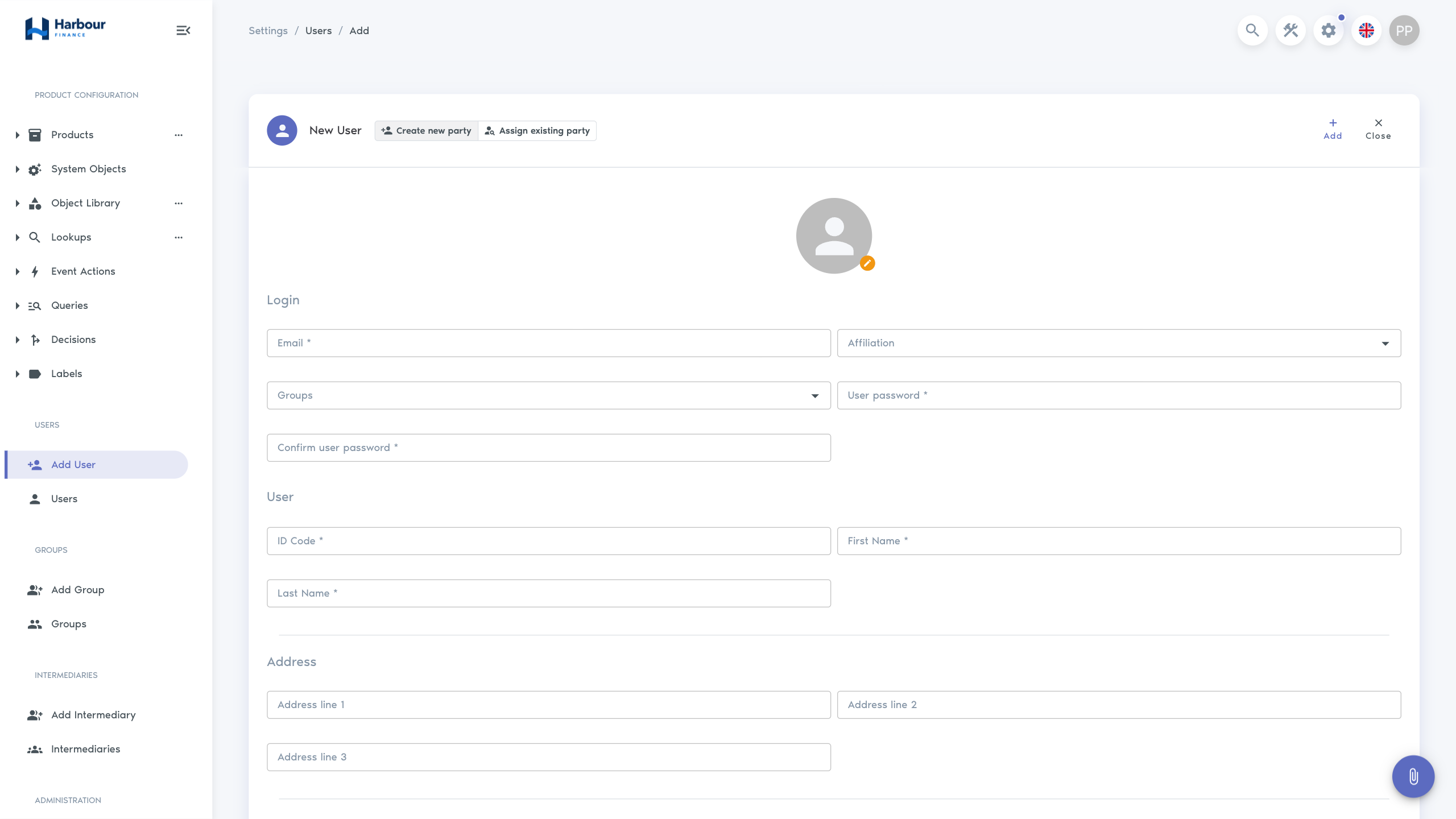
The password must contain at least eight characters, including a lowercase letter, uppercase letter, number, and symbol. Transfer it using the organisation's approved account-onboarding method; do not put it in notes or ordinary documentation.
Creating a user and granting access are separate checks. The account also needs to be active, its permission groups must be active, and the intended Workspace lists must be visible to it.
Find and review a user
Use a configured Users saved query in Administration to find an account. Open a row to review:
- login email and current status;
- affiliation;
- permission groups;
- locale and avatar;
- configured personal details;
- user history where available.
The login email is read-only after creation in the current user editor. If the wrong identity was created, follow the organisation's correction process rather than changing unrelated personal fields to disguise it.
Edit access context
Select Edit on the user and update the available affiliation, groups, locale, avatar, or personal details. The administrator needs separate assign and list permissions to search for affiliations or groups.
After saving, test with the intended user. A browser refresh or new sign-in can be required before navigation reflects changed access.
Block or activate a user
| Action | Effect |
|---|---|
| Block | Marks an active account as blocked so it cannot continue ordinary use. The identity and history remain. |
| Activate | Restores an inactive account, subject to its groups, permissions, affiliation, and authentication method. |
Block a leaver or compromised account promptly. Blocking is not the same as deleting history, removing an affiliation, or removing a user from every group.
Change another user's password
An administrator with the password-update permission can open a user and select Password. Enter New user Password and Confirm user password, then save. The administrator is not asked for that user's current password.
Use this only for a password-based account and communicate the replacement securely. An external identity provider can require its own reset procedure.
Impersonate a user
Impersonate is available only for another active user when the administrator has the impersonation permission.
- Record the support reason according to the organisation's procedure.
- Open the target user and select Impersonate.
- Verify the visible menus, records, and actions without changing data unnecessarily.
- Select Exit impersonation in the header to return to the administrator identity.
Impersonation shows effective access more accurately than comparing permission names alone, but it can also perform real actions as that user. Use it for the shortest practical time.
If impersonation opens a generic Authentication error, return to the original Finsaku tab or use the browser's Back action. When the administrator header is still available, select Exit impersonation. If the original session cannot be restored, open the normal Finsaku sign-in page and sign in again as the administrator; do not treat the failed switch as evidence of the target user's access. Use a separate browser session and direct sign-in as the target user when impersonation remains unreliable.
Diagnose user access
Check in this order:
- user Status is active;
- the correct affiliation is assigned;
- the user is a member of the intended groups;
- each required group is active;
- the group contains the specific operation permission; page access alone is insufficient;
- the product, integration, template, or saved query required by the action exists and is enabled;
- partner-restricted queries return the correct affiliation's records.
Use Permission groups, Intermediaries and affiliations, and Access model and troubleshooting for the other layers.
Follow Configure access for a new user for the complete request-to-verification path.