Product groups
Product groups set the hierarchy used in the Administration product tree and in the product menu for a new application.
- For
- Product administrators organising the lending catalogue.
- Requires
- Product-group administration permission and agreed names, translations, codes, and parent structure.
- Available when
- The tenant has lending products to place in the Administration and new-application menus.
- Before you begin
- Map the hierarchy and check products, child groups, saved links, and external references affected by a move or code change.
- Expected result
- The Administration tree and new-application product menu show the tested hierarchy after the catalogue refreshes.
Group structure
A top-level group can contain products and child groups. A child group can contain another level of groups or products, subject to the structure configured by your organisation.
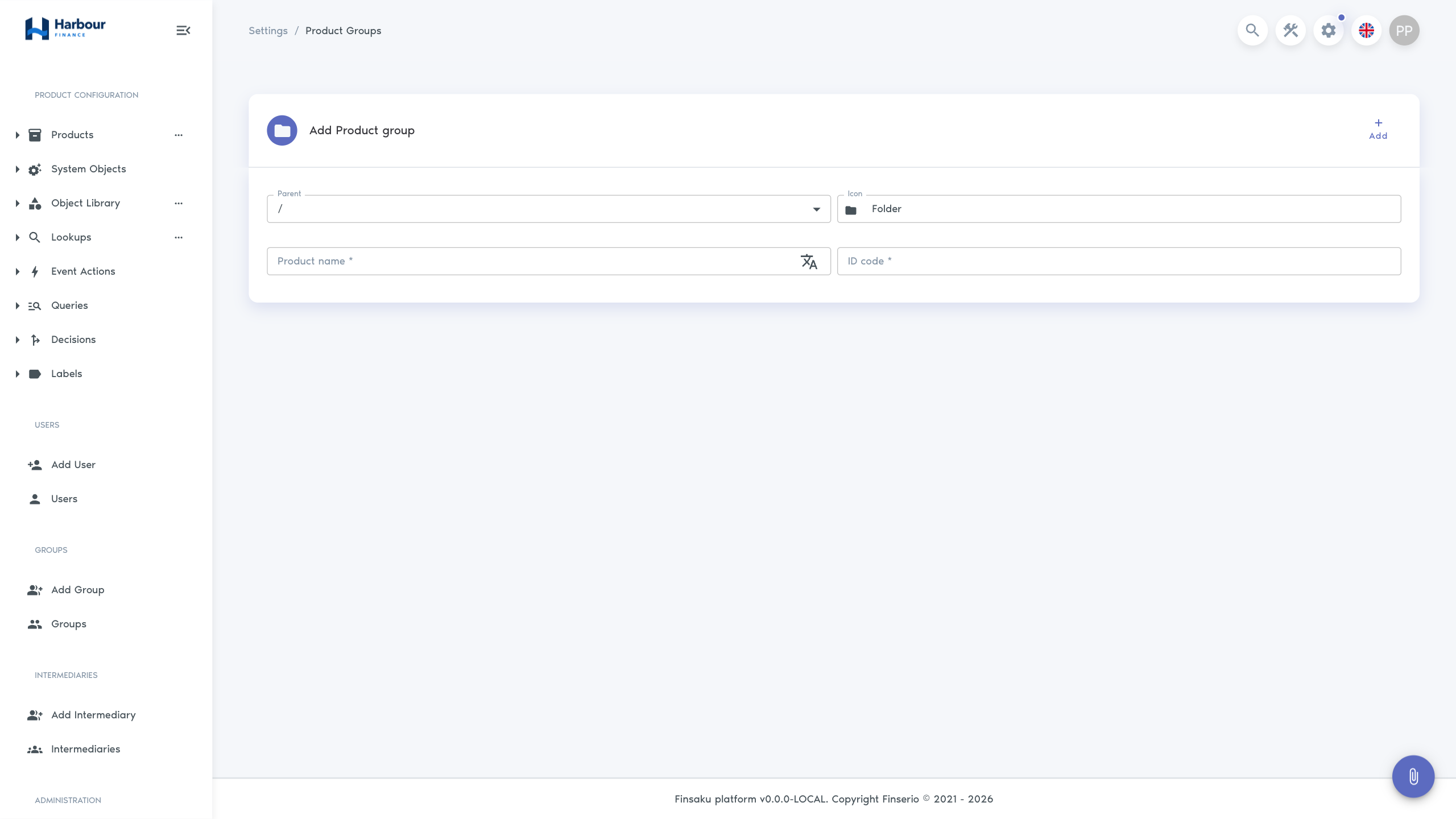
| Field | Purpose |
|---|---|
| Parent | Places the group at the root or under another product group. |
| Icon | Identifies the group in the product tree. |
| Product name | User-facing group name; translations can be maintained for supported languages. |
| ID code | Stable code used to identify the group. Use a short URL-friendly value containing letters, numbers, or hyphens. |
Group and product names should help users choose the correct lending offer. Do not create a group only to reproduce an internal reporting category if it makes application creation harder to understand.
Add a top-level group
- Open Administration and find Products.
- Open the Products more-actions menu.
- Select Add Product Group.
- Set Parent to the root option.
- Choose an icon and enter Product name, translations, and ID code.
- Select Add.
- Confirm that the new group appears in the product tree.
Add a child group
- Open the more-actions menu for the intended parent group.
- Select Add Child Product Group.
- Confirm the preselected Parent.
- Complete the icon, name, translations, and code, then select Add.
The parent determines the path; using a similar name does not create a relationship.
Add or move a product
When adding a product from a group menu, the selected group is used as its parent. Grouping is optional: use Add Product from the root Products more-actions menu and set Parent to / for a product without a group. You can also edit a product and change Parent.
After moving a product or group, check:
- the Administration product tree;
- the product choices used to start a new loan application;
- translations and icons at each level;
- procedures, links, or screenshots that describe the old path.
Moving a group moves its descendants with it. The editor excludes invalid parents that would make a group its own ancestor.
Rename or change a code
Open the group menu and select Edit Product Group. A displayed-name change affects what users see after the catalogue refreshes. A code change can affect saved links or external configuration, so keep established codes stable unless every dependency has been checked.
Delete a group
Deletion requires the product-group delete permission. The database prevents deletion while products or child groups still reference the group.
- Move or remove every child product and child group.
- Open Edit Product Group.
- Select Delete and confirm.
- Check the product tree and new-application product choices.
If deletion fails, recheck descendants and products rather than repeatedly submitting the action.
Troubleshooting
| Symptom | Check |
|---|---|
| Group is missing | Product-group list/read permissions and whether the catalogue has refreshed. |
| Add Product Group is missing | Product-group create permission. |
| A product appears under the wrong path | Product Parent and every ancestor group's Parent. |
| A group cannot be its selected parent | Finsaku prevents circular hierarchy; choose a group outside its descendant path. |
| Delete fails | Products or child groups still reference the group, or the account lacks delete permission. |
| Users see untranslated names | Tenant-supported languages and translations on the group and products. |
Continue with Product settings and Versions and data collection.