Register a new tenant
- Time
- About 5 minutes
- You need
- An available registration page, an unused organisation code, and the root user’s email address and password.
- Result
- A new tenant with a root account ready to sign in.
Check that registration is available
Open tenant registration in Finsaku ↗
Open Sign Up from the Finsaku sign-in page, or use the registration address supplied for the issuer. The host can differ when the deployment uses a custom domain.
If the page is unavailable, ask the platform operator how the tenant will be provisioned.
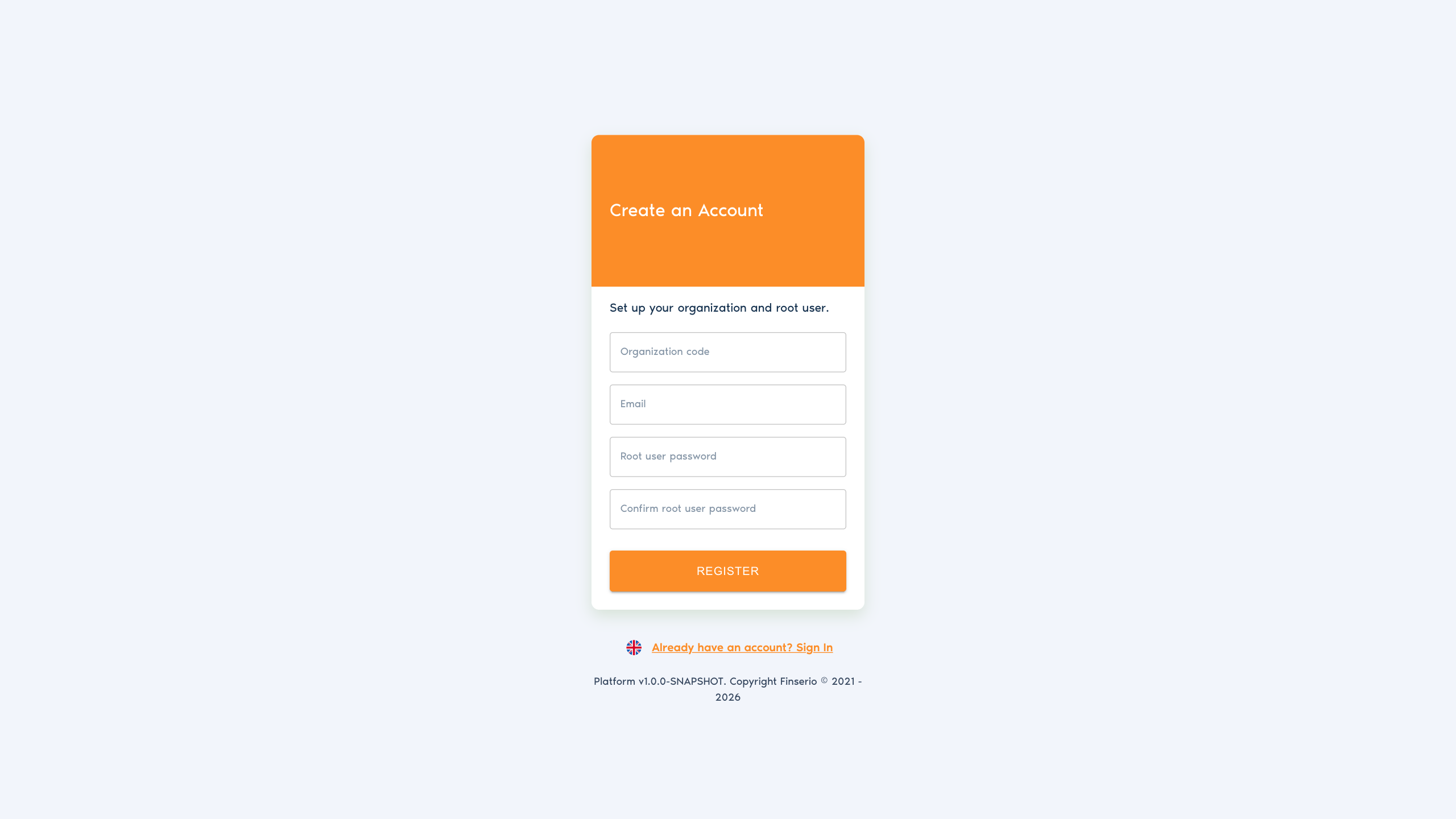
Enter the organisation and root-user details
Registration creates a real organisation account with broad initial administrative access. Use an organisation-controlled email address and password-management process.
- Enter the Organization code. Use 3–50 characters: begin with a letter or number, then use letters, numbers, or underscores. This unique code identifies an isolated Finsaku tenant and becomes the Account name used at sign-in. Its products, users, permissions, and configuration are kept separate from every other tenant.
- Enter the root user's Email.
- Enter the Root user password.
- Repeat it under Confirm root user password.
- Select Register once.
The password must contain at least eight characters, including a lowercase letter, uppercase letter, number, and symbol. The organisation code must be unique on the issuer.
Sign in and check the result
After successful registration, Finsaku opens the sign-in page and confirms that the organisation was created.
- Enter the new organisation code as the Account name and select Continue.
- Sign in with the root user's email and password.
- Confirm that the expected organisation opens and Administration is available.
This first account can manage tenant settings and user access. Keep it for administrative work, and create separate accounts for everyday users.
Continue with Set up a new tenant to configure identity, currency, time, language, lending, and appearance.
If registration stops
| What you see | Check |
|---|---|
| Registration is unavailable | Ask the platform operator how the tenant will be provisioned. |
| The organisation code is rejected | Use 3–50 permitted characters and confirm that the code is not already registered. |
| The password is rejected | Check its length, character categories, and the confirmation value. |
| No confirmation appears after submission | Do not submit repeatedly. Return to sign-in and test the organisation code, then contact the platform operator if it does not open. |