Configure collected data
- Time
- About 50 minutes
- You need
- A lending product with product versions enabled, permission to manage lookups, objects, and versions, and access to New Application.
- Result
- Reusable vehicle data and conditional purchase fields in an active product version, plus an optional signed-agreement check on the shared Loan object.
Choose where the data belongs
Finsaku separates platform structures from tenant-defined, reusable structures.
| Administration area | What it contains | Use in this quickstart |
|---|---|---|
| System Objects | Built-in structures for platform concepts such as people, applications, and loans. Their object type, stable identity, and predefined fields are controlled by Finsaku. Changes can affect more than one product or workflow. | Do not add product-specific vehicle fields to the shared Loan system object. A field added there can appear across lending products and affect queries, decisions, templates, integrations, and existing administration processes that use the shared object. |
| Object Library | Custom structures created by the tenant. An object can be reused in product versions and referenced by other custom fields. | Create one Vehicle details object and attach it to the vehicle-finance product version. |
| Product Versions | The ordered set of system, library, and product-local objects used by one product definition. Choosing Custom under Add Object creates a blank object only in that version. | Copy the active version, attach Vehicle details, create local Purchase details, put Description after the vehicle section, and activate the replacement version. |
The current initial product definition includes system-provided lending information, but its only tenant-defined data section is Description, containing one Description field with Mandatory selected. If an older or customised tenant differs, inspect the active version before planning the replacement. The Object Library is where you add a reusable business structure instead of placing unrelated fields in that section.
See Objects and fields for the complete object and field reference.
Plan the vehicle structure
Agree the displayed names, stable keys, supported languages, vehicle-make list, validation ranges, and a controlled application case.
Use stable keys because queries, decisions, templates, and integrations can refer to them. The displayed names can be translated without changing those keys.
| Item | Key | Type and settings |
|---|---|---|
| Signed agreement received | signedAgreementReceived |
Optional Boolean field added to the shared Loan system object. |
| Vehicle Makes | VEHICLE_MAKES |
Lookup containing the make names approved for the product. |
| Vehicle details | vehicle |
Custom, Single Object, two columns, summary template {{make.value}} {{model}}. |
| Make | make |
Lookup using Vehicle Makes; Used and Mandatory. |
| Model | model |
String; Used and Mandatory. |
| Manufacture year | manufactureYear |
Integer with a Range approved for the product; Used and Mandatory. |
| Annual mileage | annualMileage |
Integer with an approved Range, unit km/year, and the measure placed at the right; Used and Mandatory. |
| Purchase details | purchase |
Product-local Custom, Single Object, two columns, summary template {{dealerReference}}. |
| Purchased from dealer | dealerPurchase |
Boolean used to control whether the dealer reference is relevant. |
| Dealer reference | dealerReference |
String; Used and Mandatory; display condition purchase.dealerPurchase = true; Value Match Pattern ^[A-Z]{2}-[0-9]{4}-[0-9]{3}$. |
For a controlled test, the make lookup can contain a few representative values such as Volvo, Toyota, and Volkswagen. Replace that short list with the organisation's owned list before using it for live applications. A mileage range such as 1 to 25,000 km/year is suitable only when it matches the product rules.
The two range examples use Integer fields. Range is not available for decimal Numeric fields: those offer Any Value or Specific Value. See Integer and Numeric validation before adapting this pattern to a rate or other decimal value.
Extend a system object safely
Use a system object only when the field belongs to the shared platform concept rather than one product. This walkthrough adds an optional Signed agreement received check to the shared Loan object as a controlled example; the vehicle and purchase fields do not belong there.
- Open Administration → System Objects → Loan.
- Select Add Field and enter Signed agreement received as the Name and
signedAgreementReceivedas the stable Key. - Select a document-related Icon, use Boolean as the Field Type, keep the field optional, and select Add.
- Review the complete shared definition and select Save.
Saving changes the shared catalogue and offers two rollout choices. Propagate creates replacement active versions for affected products. Overwrite changes their matching active definitions in place instead. Use either action only after checking dependencies and following the organisation's product-change approval process.
Create the vehicle-make lookup
- Open Administration → Lookups, open its more-actions menu, and select Add Lookup.
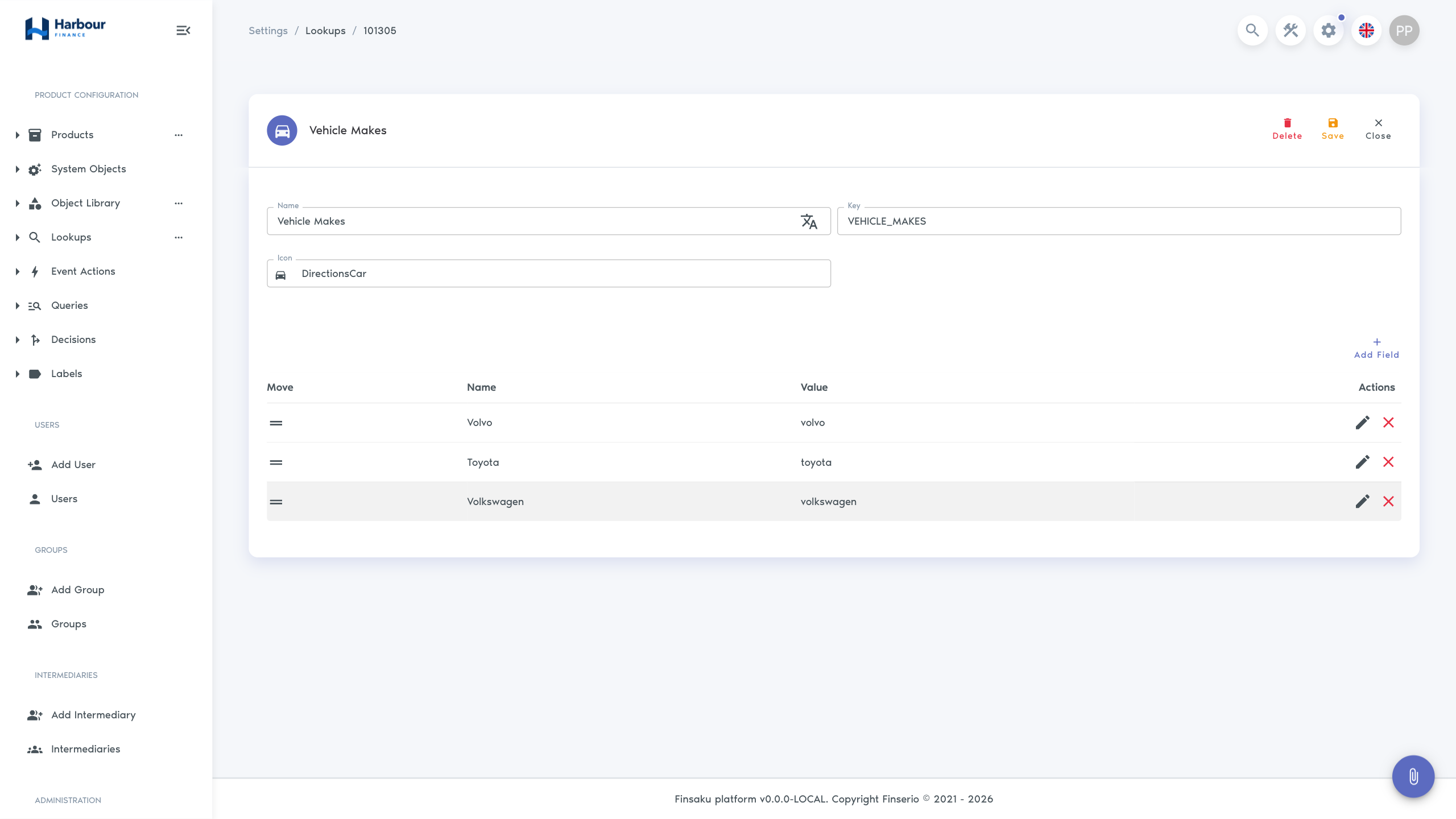
- Enter Vehicle Makes as the Name and
VEHICLE_MAKESas the Key. Choose an icon when it helps administrators recognise the list. - Select Add Field for each make. Enter its displayed Name and a stable lowercase Key, such as
volvo,toyota, orvolkswagen, then select Add. - Put the values in the order required by the product.
- Select Add on the lookup page. Reopen Vehicle Makes and confirm every name, translation, key, and position.
Creating the lookup does not add a field to an application. The next step creates a field that uses it.
Build the reusable vehicle object
Add an Object Library item in Finsaku ↗
- Open Administration → Object Library, open its more-actions menu, and select Add Object.
- Enter Vehicle details as the Name and
vehicleas the Key. - Set Object Type to Custom, Control Type to Single Object, and Summary Template to
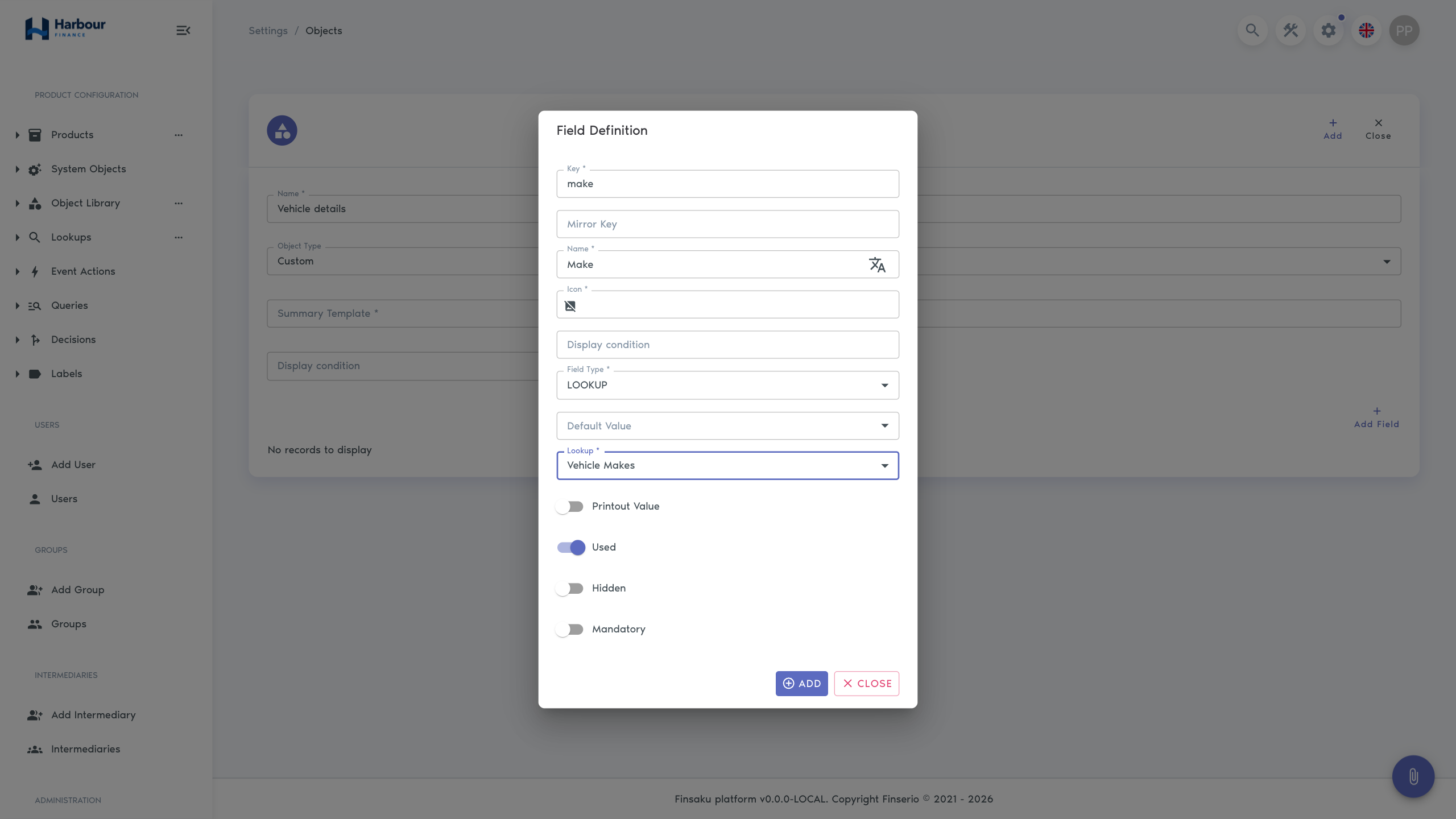
{{make.value}} {{model}}. Select a vehicle-related Icon; the object cannot be saved without one. - Select Add Field and add each field from the table below. For every field, enter its Name and Key, select a meaningful Icon (required), then choose its Field Type and additional settings. Select Add in the field dialog after completing each row.
The display name is what users see and can be translated. The key is the stable technical identifier used by configuration and integrations. The summary template combines saved values into a compact label: with make Volvo and model XC60, this example resolves to Volvo XC60.
The Vehicle Makes selection for Make is the lookup created earlier in this quickstart. Reusing it here connects the controlled list to the application field; creating the lookup alone does not collect a value.
| Field | Key | Type | Additional settings |
|---|---|---|---|
| Make | make |
LOOKUP | Lookup Vehicle Makes; Used and Mandatory selected. |
| Model | model |
STRING | Used and Mandatory selected. |
| Manufacture year | manufactureYear |
INTEGER | Field Attributes Type Range; approved minimum and maximum; Used and Mandatory selected. |
| Annual mileage | annualMileage |
INTEGER | Field Attributes Type Range; approved minimum and maximum; Unit of measure km/year; Place measure at the right, Used, and Mandatory selected. |
- After the fields appear in the object, use the Move handles to order them as Make, Model, Manufacture year, and Annual mileage. This order controls their sequence in the form.
- Set Number of Columns to
2. This places two consecutive fields beside each other on a wide screen while allowing them to stack on a narrow screen. - Select Add on the object page.
- Reopen Vehicle details under Object Library and confirm the object settings, field order, types, lookup, ranges, units, and translations.
Use Many Objects only when one application must collect several vehicles. This example uses Single Object because one vehicle secures or is financed by the application.
Attach the object to a product version
Activating a product version changes the definition used for applications created afterwards. Existing applications and loans keep the definition with which they were created. Perform the activation in a controlled tenant or through the organisation’s approved product-change process.
- Open Administration → Products and select the vehicle-finance product.
- In Product Versions, open the Active version and select Copy.
- Give the copy an approved version name, such as
1.1.0, and complete the copy. Confirm that the replacement version has New status before editing it. - Select Add Object, then choose Vehicle details from the existing definitions. This attaches the reusable Object Library definition.
- Use Down on Description so the form order is Loan Summary, Vehicle details, then Description.
- Select Add Object → Custom. Name this product-local object Purchase details, use key
purchase, select a suitable shopping icon, set the summary template to{{dealerReference}}, and use two columns. Create it here because these fields are specific to this product and are not intended for reuse. - Add optional Boolean field Purchased from dealer with key
dealerPurchase. - Add mandatory String field Dealer reference with key
dealerReference, display conditionpurchase.dealerPurchase = true, and Value Match Pattern^[A-Z]{2}-[0-9]{4}-[0-9]{3}$. The example accepts two uppercase letters, a four-digit year, and a three-digit reference, such asHF-2026-014; replace it with the organisation's approved format. - Select Save, reopen the New version, and check the complete definition and order.
- After approval, select Activate and confirm the activation. The selected version becomes Active and locked; the previously active version is no longer used for new applications.
Display conditions use stable keys and are evaluated against the form data. This condition keeps Dealer reference out of the way until Purchased from dealer is true. Do not use a display condition to conceal information that must always be collected or understood.
Attaching the object uses its current definition in this product version. Later Object Library edits do not silently rewrite earlier locked versions. Prepare another product version when the vehicle structure changes.
Verify the collected data
- Open Workspace → New Application and select the vehicle-finance product.
- Confirm that Vehicle details appears before Description, that its four fields use a two-column layout on a wide screen, and that the layout remains readable on a narrow screen.
- Select a make and enter a representative model, manufacture year, and annual mileage.
- Confirm that Dealer reference is initially absent. Select Purchased from dealer and confirm that Dealer reference appears.
- Enter
HF-2026-014, or another reference that matches the approved pattern. A draft Save can retain in-progress values and does not by itself prove pattern validation. If this controlled run includes an action that performs full application validation, first use a non-matching value such ashf-2026, confirm that the action rejects it, then restore the matching value before continuing. - Clear one mandatory value and open each Range field. Confirm that the form identifies the missing value and that the range fields offer only approved numbers, then restore valid values.
- Save the controlled application only when creating that record is approved. Reopen it and confirm that the make displays its name, the other values retain their types and units, the display-conditioned value is retained, and the vehicle summary resolves.
- If the test is authorised to continue through lending, follow Process a first application. Open the resulting loan and confirm that Vehicle details contains the values saved on the application.
An application created before activation keeps its earlier product version and does not gain the new section. Start a new controlled application for this check.
Before continuing, confirm that Vehicle Makes has the intended values and stable keys, Vehicle details contains the four ordered fields in the Object Library, and one product version is Active with that object attached. A new application should enforce the configured lookup, types, ranges, unit, mandatory rules, dealer-reference pattern, and display condition; after saving, it should preserve the values and resolve a summary such as Volvo XC60. In an authorised end-to-end test, the same values should remain available on the resulting loan.
Continue with Set up integration partners, then Set up documents and communications when documents, email, or SMS need to use the new paths. Confirm the paths in Preview Data rather than assuming them from the displayed field names.
Troubleshooting
| What you see | Check |
|---|---|
| Lookups, Object Library, or Product Versions is absent | The corresponding list, create, read, update, and activation permissions; Enable product versions; and the current tenant. |
| The lookup or reusable object is absent from a selection list | Confirm that it was added, that the object type is Custom, and that the user can read it; then refresh the page. |
| The version cannot be edited or the section is absent from a new application | Copy an Active or Locked version before editing. Confirm that the replacement is Active, the object is attached, and its fields are Used and not Hidden. |
| Validation or saved values are incorrect | Check field types, ranges, mandatory and display settings, then confirm that the application used the intended version and saved the values before Lend. |
| A conditional field never appears | Check the expression against the stable object and field keys, for example purchase.dealerPurchase = true, and test both the false and true states in a new application using the intended active version. |
| A dealer reference is rejected | Compare the complete value with the configured Value Match Pattern. The example is case-sensitive and requires a value such as HF-2026-014; do not loosen a production rule merely to accept test data. |