Process a first application
- Time
- About 20 minutes
- You need
- A borrower, an available lending product, and permission for your part of the workflow.
- Result
- An issued application linked to an active loan, or an approved application handed to the lending user.
Find or create the borrower
Search for the person or organisation before creating a record. Compare the available identifiers and contact details so that the application is not attached to a duplicate borrower.
If no correct record exists, create it and complete the fields required by your organisation. See Find and create people and Person records.
Create and calculate the application
- Open Workspace → New Application.
- Choose the intended lending product.
- Select the borrower.
- Enter the application and submitter information required by the product.
- Enter the amount, currency, rate, term or number of payments, dates, and other product-specific required inputs.
- Wait for Finsaku to update the calculated summary and payment schedule, then review them.
- Select Save if the application needs more work, or select the available processing action when it is ready to proceed.
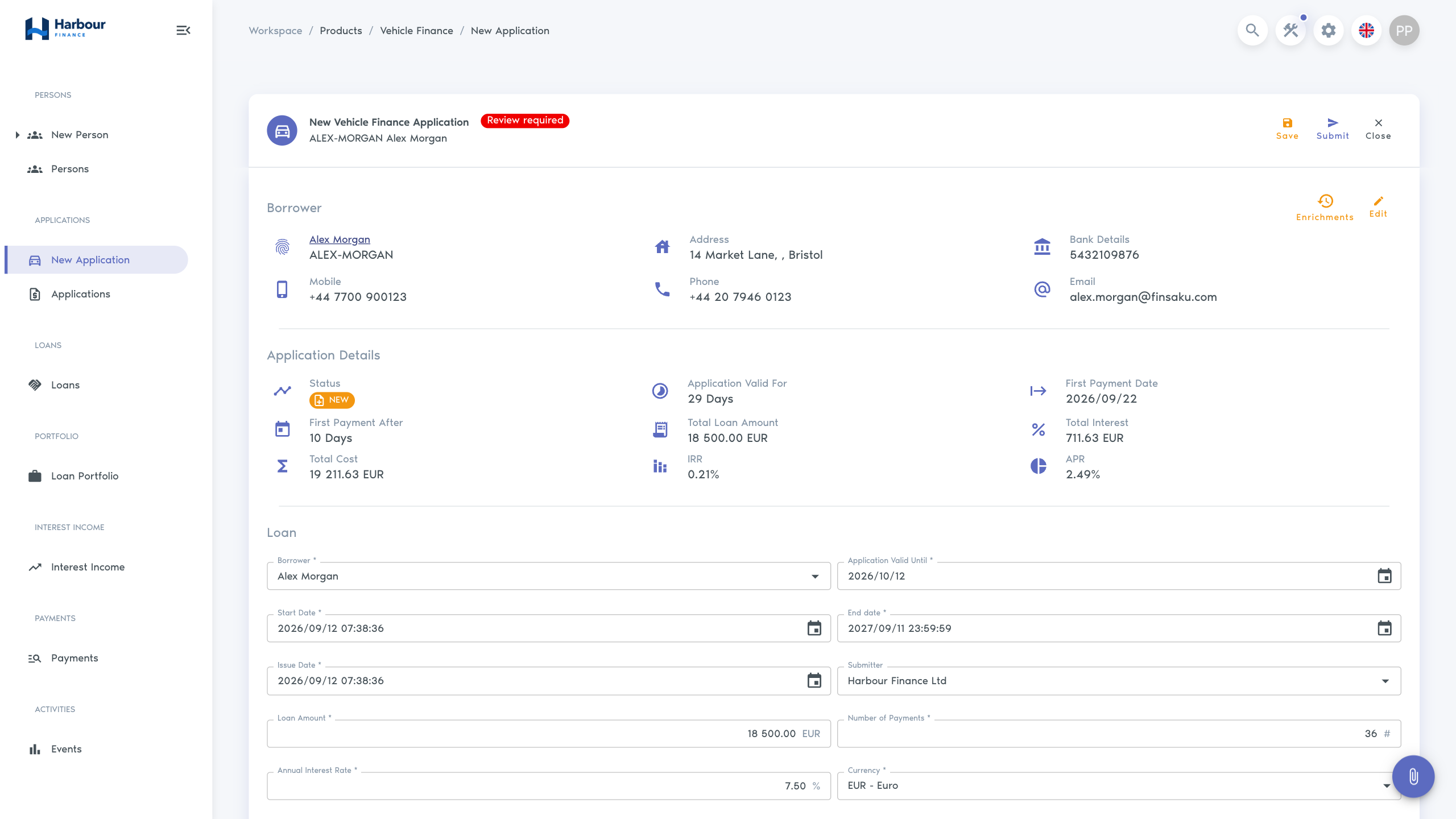
Finsaku recalculates automatically after a relevant financial input changes. Wait for the updated figures before processing the application, then confirm the first and final instalments, total cost, payment dates, and any product-specific charges. Terms and calculation explains the inputs and results.
The recorded Vehicle Finance example uses a 2024 Volvo XC60, a dealer reference, and one Northstar valuation for USD 25,800. Its visible provider, date, amount, and reference must all be complete before the application can be submitted. The free-text Description is the final field in the form, so enter it after the structured vehicle and valuation data.
Review and process the application
Review the borrower, terms, documents, product information, enrichment results, decisions, and unresolved notes. Follow the actions shown on the application. A common path is Submit, Approve, then Lend, but configured workflows can omit a state or add a clarification or investigation step.
In the recorded example, Submit validates the complete application and leaves its status as New. Approve then changes the status to Approved.
Approving records the lending decision. It does not create a loan. Lend changes the application to Issued and creates the linked loan and contract in the current tenant. After Lend, open the linked loan and confirm its Active status, borrower, product, agreed terms, and schedule. If another role performs lending, stop at the approved hand-off state and do not try to bypass the separation of duties.
See Review and processing for the available actions and alternate outcomes.
Troubleshooting
| What you see | Check |
|---|---|
| New Application is absent | Application permissions and whether a lending product is available in the tenant. |
| The intended product is absent | Product and active product-version dates, availability, and your role's access. |
| Calculation does not complete | Required inputs, conditional product fields, dates, and calculator configuration. |
| A processing button is absent | Application status, exact operation permission, required information, and configured decisions. |
| Lend returns an uncertain result | Check application history and Workspace → Loans before trying again; do not create a second loan for the same application. |
| The request must not proceed | Use the available rejection, expiry, clarification, or investigation path described in Review and processing. |