Service a loan and record a payment
- Time
- About 15 minutes
- You need
- An active loan with an unpaid scheduled amount, an unrecorded incoming payment, and permission to view the loan and calculate, add, and list payments.
- Result
- One saved regular payment whose distribution, schedule effect, and loan figures have been checked.
Find and check the loan
- Open Workspace → Loans.
- Find an active loan.
- Open its Payments workflow.
Match real incoming payments using the source transaction information: payer details, payment reference or loan number, and any other identifiers required by your organisation. Do not continue when the transaction belongs to another loan, its currency differs, it may already be recorded, or a provider callback is still expected.
See Loan overview for the loan sections and status checks.
Record the receipt
Use the payment date, amount, and payer from the source transaction. Selecting Add records a real payment and recalculates the loan. Confirm that the transaction belongs to the loan before committing it.
- Select Payments on the loan.
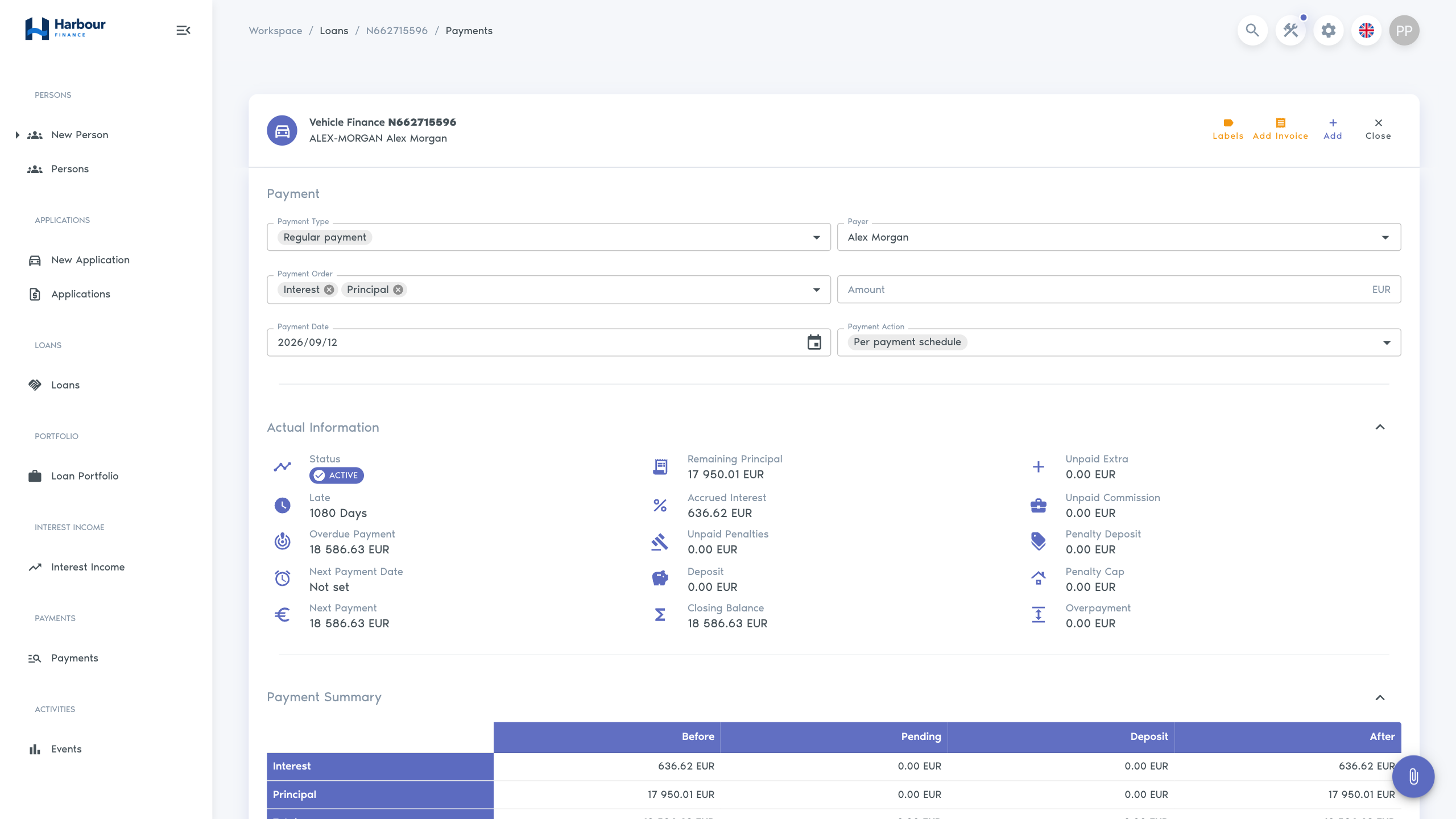
- Under Payment, choose Regular payment as the Payment Type.
- Select or confirm the Payer.
- Review the Payment Order supplied by the product.
- Enter the receipt Amount and Payment Date.
- Choose Per payment schedule as the Payment Action for this scheduled incoming payment.
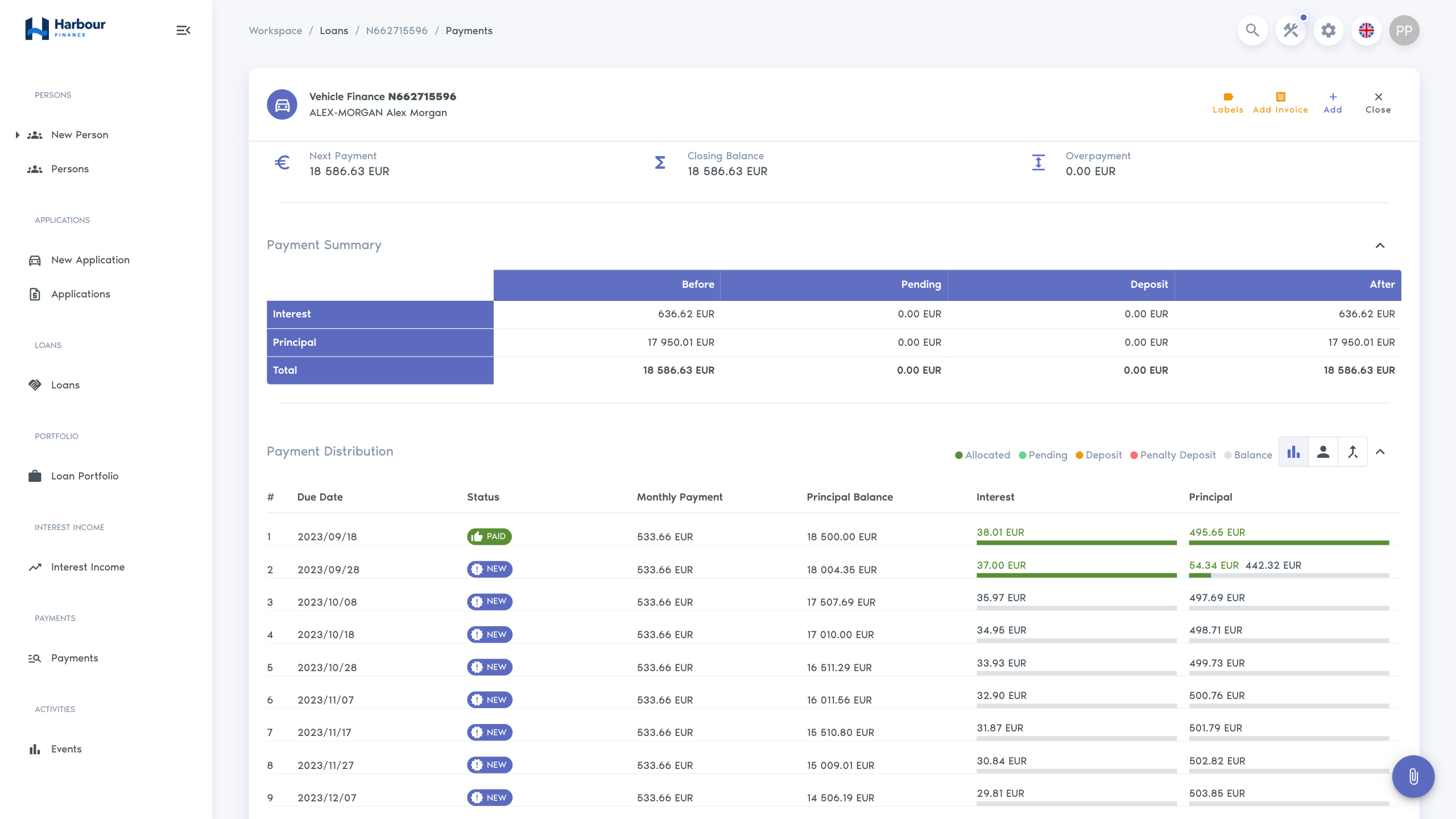
- Wait for the preview to update. Review the before, pending, deposit, and after figures and the payment distribution.
- Select Add once.
The payment date cannot be in the future or before the permitted last-payment boundary. Use Full repayment only for an authorised closing payment; it follows a different calculation from a scheduled incoming payment.
After Add, the payment should appear once in the payment list with the selected payer, amount, date, type, action, and payment order. If the result is uncertain, use the payment list and history before entering anything again.
Allocation and schedules explains each distribution outcome and the checks for an unexpected balance.
Troubleshooting
| What you see | Check |
|---|---|
| Payments is absent | Loan status, payment permissions, and whether the loan has a full payment schedule. |
| The preview differs from the receipt or expected due amount | Payment date, action, payment order, additional invoice lines, and calculation date. |
| The payment is pending, deposited, or overpaid | Due dates and product allocation rules before treating the result as an error. |
| A banklink payment is still being confirmed | Provider transaction state, loan payment list, and history. A callback can still create the payment. |
| The payment appears twice | Do not add another correction. Record both payment numbers and follow the organisation's payment-correction procedure. |
Use Record payments before manually replacing an integrated bank payment.