AI assistant
Use the AI assistant to ask about Finsaku functions or the status of an application or loan. Verify its answer against the current record, history, configuration, and your organisation's lending or servicing procedure.
- For
- Workspace users seeking help with a Finsaku task or the loaded application or loan.
- Requires
- Assistant chat permission, an active Finsaku session, and access to any record mentioned in the question.
- Available when
- The floating AI assistant button appears in the current tenant.
- Before you begin
- Open the correct record, state the task precisely, and omit credentials and unnecessary personal or financial data.
- Expected result
- You receive a relevant answer and verify it against the current record, history, configuration, and approved procedure.
Open and close the assistant
The floating AI assistant button appears at the bottom-right when your account has the assistant chat permission.
- Select the button, or press Ctrl+I on Windows or Linux and Command+I on macOS, to open it.
- Select Expand assistant to use most of the window and Restore assistant size to return to the panel.
- Select Close or press Escape to hide the panel.
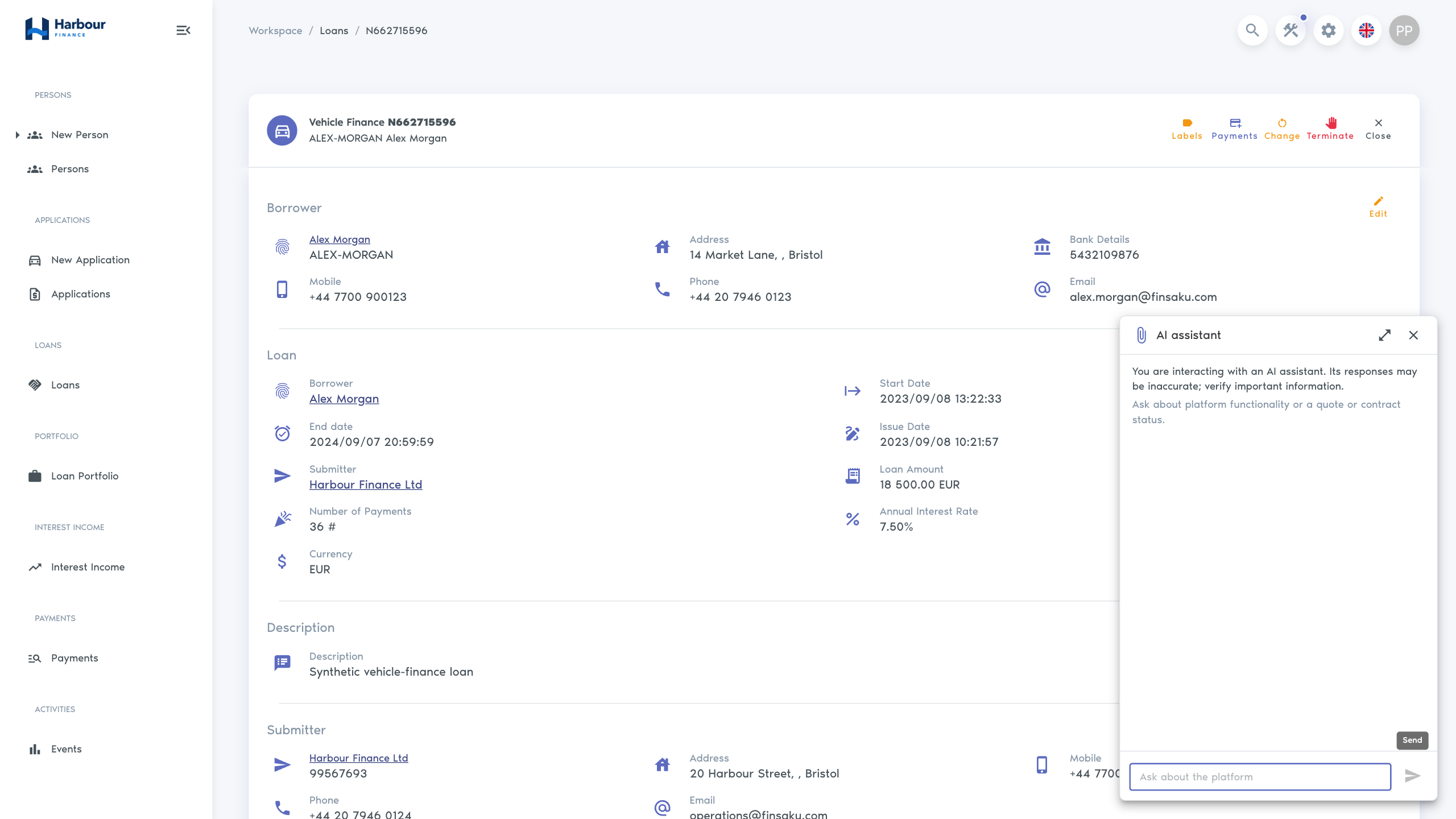
Closing the panel keeps the current conversation while you continue in the same loaded Finsaku session. Refreshing the application or signing out can start a new conversation.
Ask a useful question
State the task and the relevant context. For example:
- “What should I check before approving this loan application?”
- “What does an Overpayment allocation mean?”
- “Why might the lending action be unavailable for an approved application?”
Use the visible record number or status when it helps, but do not paste credentials or more personal and financial data than the question requires. The assistant can format answers with headings, lists, tables, links, and images.
Verify the answer
The panel states that responses may be inaccurate. Before relying on an answer:
- check the current application, loan, payment, or person record;
- check the available actions and record history;
- confirm product configuration, permissions, and organisation-specific procedures;
- open any cited Finsaku page or help page and confirm that it supports the answer;
- have a qualified person review decisions that require lending, compliance, or accounting judgement.
Do not treat an assistant response as evidence that an action ran. A status, payment allocation, generated document, sent message, provider result, or history entry is the operational evidence.
Continue a conversation
Follow-up questions in the same panel use the current conversation. Refer back clearly, for example, “Which of those checks can an administrator perform?” Restate the record when changing to a different customer or loan.
Press Enter to send. Use Shift+Enter for a new line. While a response is loading, wait for it to complete before sending another question.
If the assistant is unavailable
| Symptom | Check |
|---|---|
| No assistant button | The account needs the assistant chat permission. Ask an administrator to check the effective permission group. |
| Assistant is unavailable. | The request failed. Keep working from the record and help documentation, and report the time and task to support. |
| The answer describes a missing action | Check the record status, product, permissions, and tenant configuration. Available actions differ by organisation. |
| A link or image is not useful | Ignore it and verify the claim from the relevant Finsaku record or documentation page. |
Do not repeatedly submit the same sensitive question when the service is failing. A failed assistant request does not change the underlying Finsaku record.
To use a compatible external AI client for supported status and configuration tools, follow Use Finsaku through an MCP client. An MCP connection has a separate sign-in and tool permission check.