Access model and troubleshooting
Finsaku checks user status, active group permissions, affiliation and query scope, product configuration, and record state before showing a record or action.
- For
- Tenant administrators and authorised support users investigating access.
- Requires
- Read access to the affected user, groups, affiliation, saved query, and record.
- Available when
- The relevant administration and record permissions are granted.
- Before you begin
- Record the user, missing or excess access, entry point, record, and current status.
- Expected result
- The controlling status, membership, scope, configuration, or record state is identified and the correction is verified.
How access is determined
Check the controls in this order:
| Control | What it decides |
|---|---|
| User status | Whether the identity can use ordinary Finsaku access. |
| Active group memberships | The combined operations the user or affiliated intermediary can perform. Access from more than one group is cumulative. |
| Affiliation | Which intermediary the user represents and the partner scope used by applicable queries. |
| Saved query | Whether a list appears in Workspace or global search, which records it returns, and whether export is available. |
| Product and tenant configuration | Whether the required product, template, integration, decision, or workflow exists and is enabled. |
| Record state | Whether the operation is valid for the current application, loan, payment, or configuration status. |
Page access and operation access are separate. List, read, create, update, delete, processing, assignment, export, history, and administration operations can require different permissions.
Access records
- Users describes sign-in identity, status, profile, affiliation, group membership, password administration, and impersonation.
- Permission groups describes members, permissions, activation, and role design.
- Intermediaries and affiliations describes partner organisations and affiliation-based visibility.
- Distribute lending through intermediaries joins the partner role, application query, product, portal workflow, and optional external-system channel.
- Saved queries describes menu, global-search, embedded-list, export, and Internal or Partner visibility.
- Audit trail describes recent activity, record history, change details, and the permissions that expose them.
Use a unique user for each person. Block an account that must no longer sign in; do not rename it for another person because history must continue to identify the original actor.
Diagnose a missing menu or record
- Confirm that the user is active and signed into the intended account.
- Open the user and confirm the expected affiliation and group memberships.
- Open every relevant group, confirm it is active, and find the exact list or read permission.
- Open the saved query that should supply the menu or global-search entry.
- Check its location, object, visibility, and conditions.
- For a partner user, confirm that the record carries the affiliation data used by the Partner restriction.
- Refresh Finsaku or sign in again, then test both an expected record and an unrelated record.
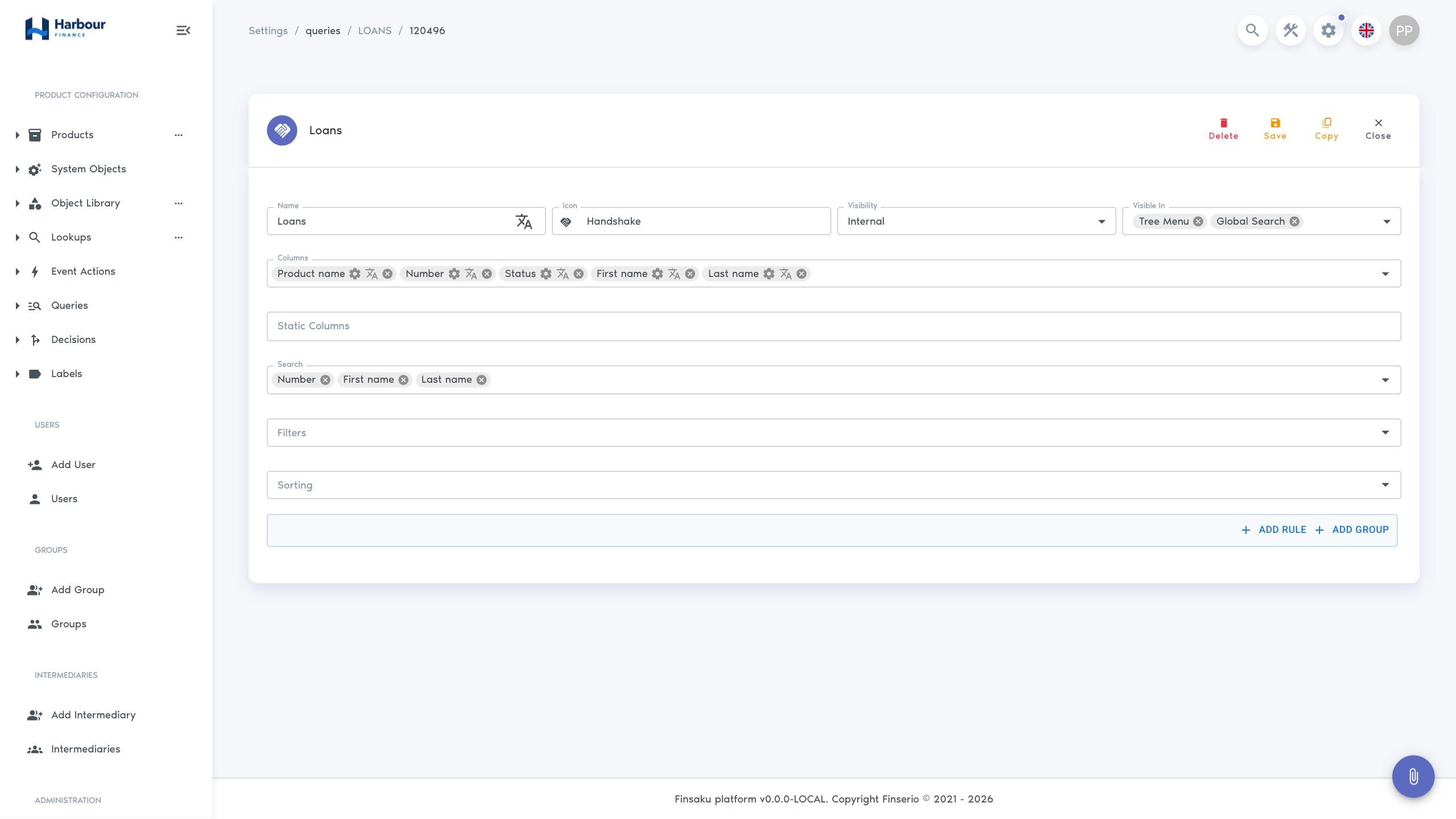
If a direct link works but the list is missing, query placement is the likely difference. If the list appears but a record does not, investigate query conditions and affiliation. If the record opens but an action is missing, continue with the operation permission, record state, and dependent configuration.
Diagnose a missing action
| Symptom | Check |
|---|---|
| Button is absent for every record | Exact operation permission and required product, integration, or template. |
| Button appears on some records | Status, product, party type, ownership, and required data on the affected record. |
| User can view but not save | Update permission, field rules, mandatory values, and conditional visibility. |
| Export is absent | Query export setting and export permission, separate from list/read access. |
| Administration is absent | At least one relevant administration permission and an active group supplying it. |
| AI assistant is absent | Assistant chat permission. |
| MCP sign-in succeeds but a tool is denied | The exact permission required by that MCP tool. Registering the client does not add Finsaku permissions. |
Diagnose excess access
Review every active group attached directly to the user and through the intermediary. Removing one membership does not remove access supplied elsewhere.
For partner access, test all entry points: Workspace list, global search, direct URL, embedded related list, export, and bulk assignment. A correctly restricted menu is not enough if another query or direct-record permission exposes the same data.
Verify an access change
- Test with a representative ordinary user, or use authorised impersonation for a recorded support reason.
- Confirm one operation that should succeed.
- Confirm one neighbouring high-risk operation that should remain unavailable.
- For partner roles, confirm an in-scope record is visible and an out-of-scope record is not.
- Exit impersonation and record the group, query, or affiliation change under the organisation's access-control procedure.
Keep lending, payment deletion, export, integration editing, user administration, and impersonation permissions separate where independent control is required. Review inactive accounts, intermediary membership, and sensitive groups regularly.