Set up a new tenant
- Time
- About 30 minutes
- You need
- A provisioned tenant, an administrator with General Settings access, and agreed organisation settings and appearance assets.
- Result
- Saved and checked tenant settings, ready for lending-product and user setup.
Confirm the tenant and initial account
If the tenant does not exist yet and registration is available, begin with Register a new tenant. No lending product is required for tenant setup.
- On the Finsaku sign-in page, enter the supplied Account name and select Continue.
- Enter the initial administrator's Email and Password.
- Confirm that the expected organisation opens and Administration is available.
- Open the account profile and confirm the signed-in email and current user locale.
Stop if the account name opens the wrong organisation or the account does not have the approved administration role. Do not configure a different tenant to work around an access problem. Use Sign in and manage your profile and Access model and troubleshooting to check the identity and permissions first.
Save the organisation-wide settings
These settings apply across the tenant. Changing currency, time zone, language, or product capabilities after operational work has started can change what users see and how new work is prepared.
- Open Admin Area → Settings to reach General Settings. See the annotated navigation guide to locate these controls.
- Under Company Information, enter the company's legal name as Company full name, followed by its Company registration number.
- Select every Supported currencies value required by the lending products that will be configured.
- Select the Default currency that will be displayed in loan application forms. It must also be present under Supported currencies.
- Select the organisation's Time zone.
- Under Business, keep Lending in the selection of business types. Business types determine which product families the tenant can configure. Do not enable another type unless the organisation will use it.
- Set Enable product versions according to the agreed configuration process. When enabled, administrators can prepare and test a replacement product definition before activating it. The active version remains locked, and the replacement does not affect new applications until it is activated.
- Complete the approved company address fields.
- Under Localization, set Supported languages, Default language, and Operating language.
- Select Save.
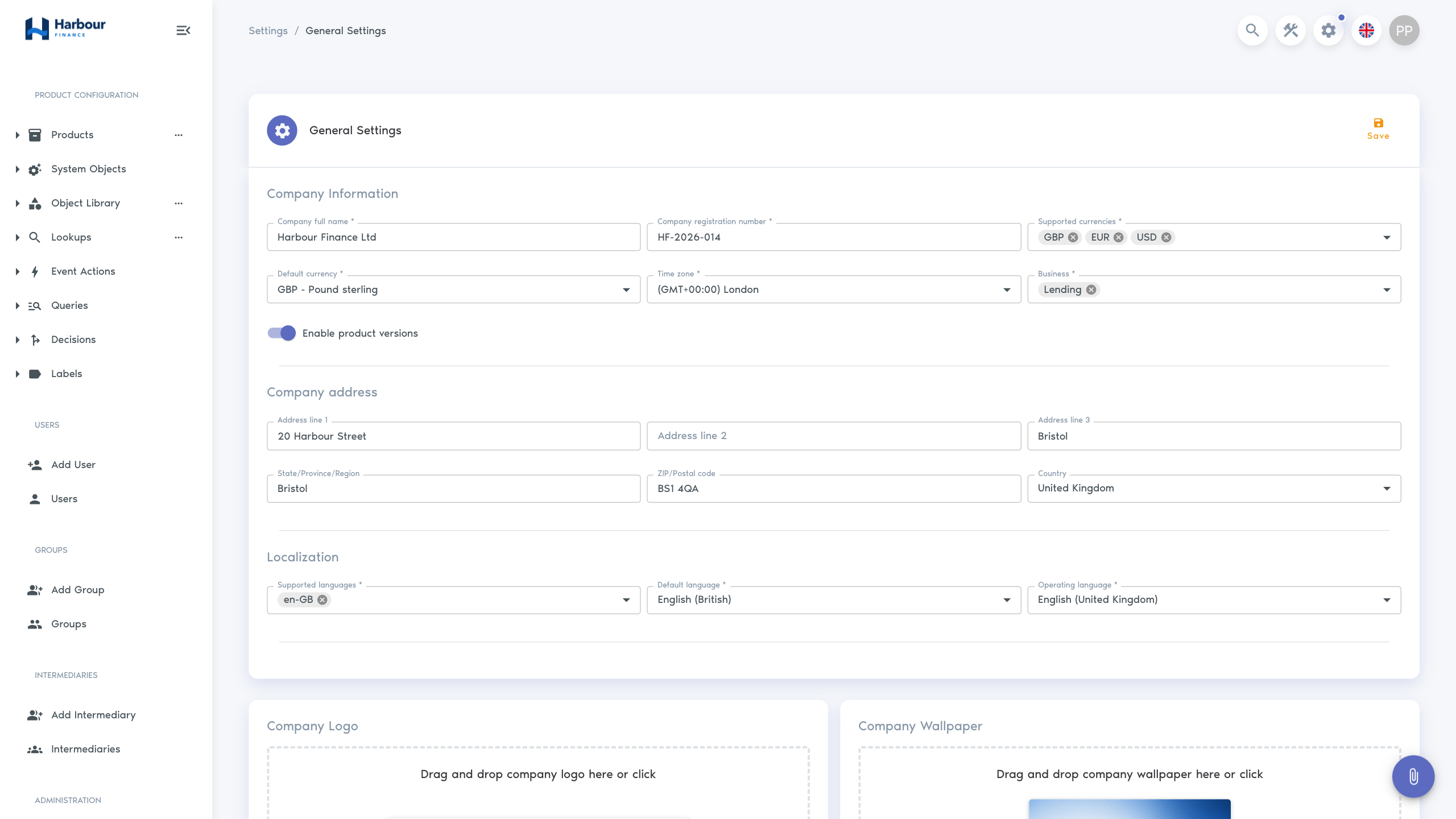
Adding a supported currency does not add conversion rates or make every calculator multi-currency.
The three language settings have different purposes:
| Setting | What it controls |
|---|---|
| Supported languages | The languages shown to users in the interface language selector. Administrators can also translate configured names and values into these languages where translation fields are available. |
| Default language | The interface language Finsaku uses unless the user selects another supported language. |
| Operating language | The language or locale used for generated and automated content, preview or sample data, automatic email and SMS actions, and supported provider interactions. It does not change the lending currency. |
Apply approved appearance settings
The remaining General Settings panels control Company Logo, Company Wallpaper, and Primary color. Apply only approved assets and a theme that keeps the sign-in page, header, navigation, and controls readable.
- Under Company Logo, upload the approved logo. Use an image with a transparent background when the mark must work on both light and dark surfaces.
- Wait for the upload to finish and confirm that the logo preview is not cropped.
- Under Company Wallpaper, upload the approved wide wallpaper and confirm that its preview preserves the important content. The Harbour Finance example keeps the text area quiet and places its harbour detail towards the right for responsive cropping.
- Under Primary color, select the approved theme swatch. The Harbour Finance example uses the fourth, blue Finsaku theme.
- Select Save.
- Confirm that the tenant logo appears in the authenticated header, the wallpaper appears on authentication pages, and the selected theme controls the interface accents. Reload the page before retrying if a saved asset is not shown immediately.
| Setting | Where it appears | When the change becomes visible |
|---|---|---|
| Company Logo | Authentication pages and the authenticated header. | The upload is saved when accepted. Reload the current page or open an authentication page to check it. |
| Company Wallpaper | The image area on authentication pages. | The upload is saved when accepted. Reload or reopen an authentication page; a new sign-in is not otherwise required. |
| Primary color | Buttons and accents on authentication and authenticated pages. | The selection previews immediately in the current session. Select Save to persist it, then reload the authentication page to check it there. |
Remove or replace an image that obscures text, crops the organisation mark, or exposes information that should not be public.
Appearance changes identify the tenant. They do not change the company name used in generated documents or the sender identity used by an email integration.
Check the baseline
Reopen General Settings and confirm the organisation identity, currency, time zone, language, Lending, product-version setting, and appearance match the agreed baseline. Confirm that the initial administrator can still open Administration and Workspace.
Continue with Set up a lending product and Configure access for a new user. Do not treat the presence of New Application as proof that a usable product exists; the tenant still needs a lending product with an active definition.
Troubleshooting
| What you see | Check |
|---|---|
| General Settings is absent | The signed-in tenant, user status, active group, and tenant-settings permission. |
| Save rejects the form | Required company fields, at least one business type and supported language, and whether the default currency is in the supported set. |
| Lending is unavailable under Business | The product types allowed for the provisioned Finsaku deployment. Stop and ask the platform operator to verify the tenant rather than selecting another business type. |
| Language, dates, or numbers are unexpected | Default language, Operating language, Time zone, and the signed-in user's locale. |
| The logo, wallpaper, or header is unreadable | Restore an approved high-contrast asset or colour, then check the sign-in page and navigation again. |