Configure repeated objects
- Time
- About 30 minutes
- You need
- The Vehicle Finance setup from Configure collected data, product versions enabled, object and version permissions, and access to New Application.
- Result
- An active product version that collects one to three separate vehicle valuations in a new application.
Choose the repetition limits
Agree whether a valuation is mandatory, how many assessments are allowed, and the stable field keys before creating the definition.
A Single Object presents one instance of its fields. Many Objects presents a list and allows the user to add or remove entries within configured limits.
| Setting | Value in this example | Effect in the application |
|---|---|---|
| Control Type | Many Objects | The valuation field group can occur more than once. |
| Minimum elements | 1 |
One valuation remains required. |
| Maximum elements | 3 |
A fourth valuation cannot be added. |
| Summary Template | {{providerName}} {{valuationReference}} |
Each completed entry can be identified by its provider and reference. |
| Number of Columns | 2 |
Two consecutive fields appear beside each other on a wide screen and stack on a narrow screen. |
If a product can begin without a valuation, use a minimum of 0 instead. A minimum of 1 is suitable only when the organisation requires an assessment before the application can pass validation.
Create the repeated valuations
Open Object Library in Finsaku ↗
- Open Administration → Object Library, open its more-actions menu, and select Add Object.
- Enter Vehicle valuations as the Name and
vehicleValuationsas the stable Key. - Set Object Type to Custom and Control Type to Many Objects.
- Enter
1for Minimum elements and3for Maximum elements. The minimum requires an assessment; the maximum prevents the application from collecting more assessments than the product's downstream rules support. - Select a valuation-related Icon and enter
{{providerName}} {{valuationReference}}as the Summary Template. - Add the following mandatory fields and set Number of Columns to
2:
| Field | Key | Type |
|---|---|---|
| Provider name | providerName |
String |
| Valuation date | valuationDate |
Date |
| Valuation amount | valuationAmount |
Money |
| Valuation reference | valuationReference |
String |
- Select Add on the object page.
- Reopen Vehicle valuations and confirm Many Objects, the minimum and maximum, Summary Template, field order, types, and translations.
The keys form the path used by downstream configuration. Confirm the available repeated path in Preview Data before using it in a query, decision, template, or integration.
Attach it to a product version
Activating a product version changes the definition used for applications created afterwards. Existing applications and loans keep the definition with which they were created. Perform the activation in a controlled tenant or through the organisation’s approved product-change process.
- Open Administration → Products → Vehicle lending → Vehicle Finance.
- In Product Versions, open the Active version and select Copy.
- Name the replacement
1.2.0and complete the copy. Confirm that its status is New. - Select Add Object, then choose Vehicle valuations from the existing definitions. Do not select Custom, which would create an unrelated product-local object.
- Place the section where the intended application users should encounter it.
- Select Save, reopen the New version, and review the complete definition.
- After approval, select Activate and confirm the activation. The replacement becomes Active and locked.
Attaching the reusable object fixes its current definition into this product version. A later Object Library edit does not silently rewrite the locked version. Prepare and approve another product version when the repeated structure changes.
Check the limits in an application
- Open Workspace → New Application and select Vehicle Finance. Use a new application because one started before activation retains its earlier version.
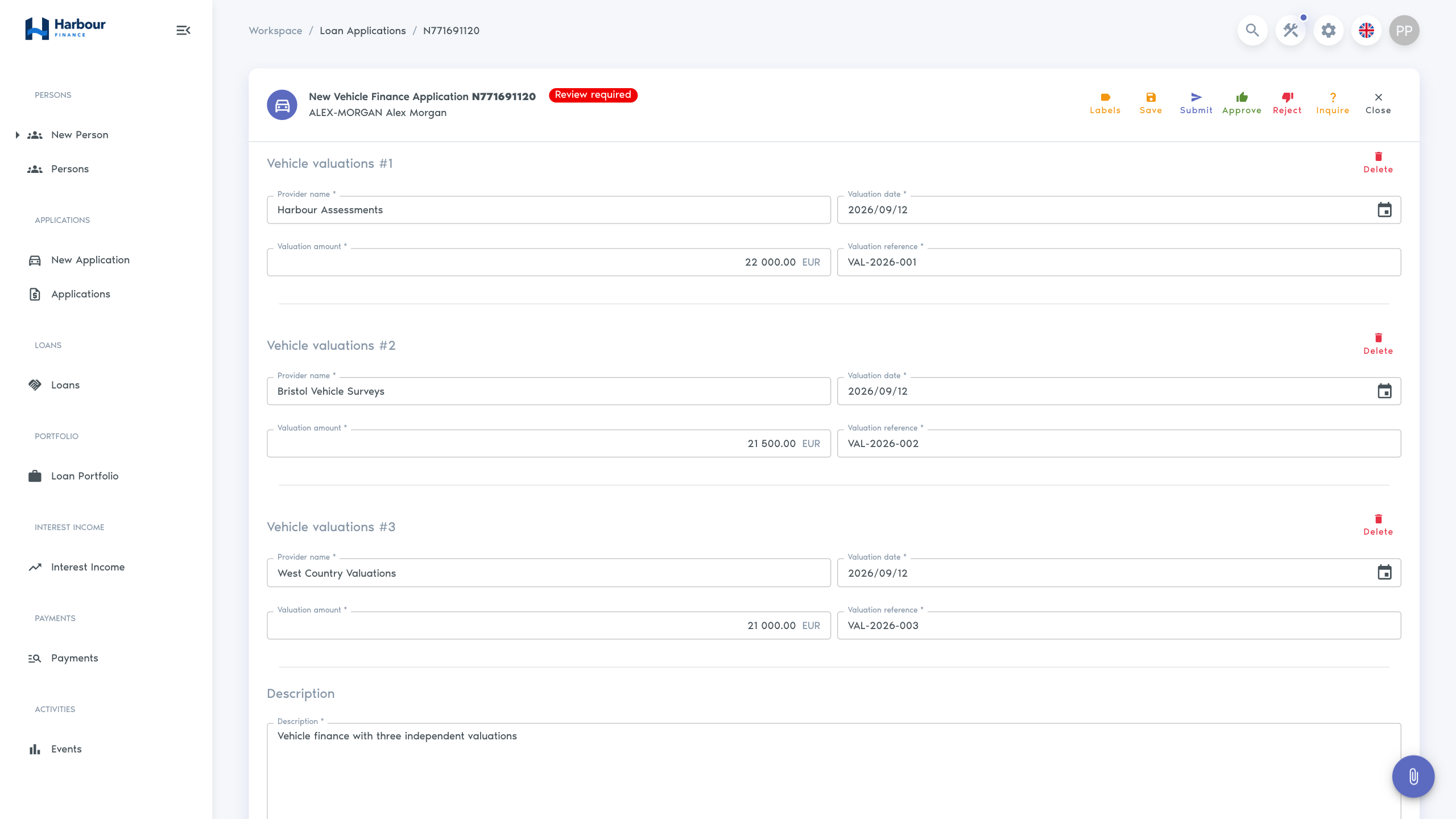
- Confirm that the application begins with one Vehicle valuations entry.
- Enter a controlled provider name, date, amount, and reference.
- Add a second and third valuation.
- At three entries, confirm that another valuation cannot be added.
- Remove entries until one remains. Confirm that the final required valuation cannot be removed.
Stop and do not activate for live use if the minimum blocks a legitimate application, the maximum permits more valuations than downstream rules support, summaries cannot distinguish entries, or a template, decision, query, or integration cannot process the repeated path.
Troubleshooting
| What you see | Check |
|---|---|
| Vehicle valuations is absent from Add Object | Confirm that the Object Library definition was added, its type is Custom, and the current user can read it; then refresh the product version. |
| The application permits the wrong number of entries | Reopen the definition attached to the active product version and check Control Type, Minimum elements, and Maximum elements. A later library edit does not change an already locked version. |
| Fields or summary templates are unexpected | Confirm that the active product version contains the intended definition and that the summary template uses its stable field keys. Test the active version in a new application. |
| Repeated data is missing from a document or integration | Inspect Preview Data with more than one valuation and configure the consumer to iterate the repeated path. A single-object expression does not automatically handle a collection. |
See Objects and fields for all object controls and field types. Continue with Set up documents and communications when a template must render the valuation collection.