Sign in and manage your profile
Your Finsaku account determines which records, menus, and actions you can use. The account is separate from a borrower person record, even if both describe the same individual.
- For
- All Finsaku users signing in or maintaining their own profile.
- Requires
- The organisation's Finsaku address, account name, and the credentials or identity-provider access assigned to you.
- Available when
- Your user account is active and the organisation's sign-in service is available.
- Before you begin
- Confirm the organisation and sign-in method; use the profile menu only for your own account details.
- Expected result
- You enter the correct tenant, can review your access context, and can save permitted profile or password changes.
Sign in
- Open the Finsaku address supplied by your organisation.
- Enter the organisation's Account name and select Continue.
- Complete the sign-in method shown for that account. A password-based account asks for Email and Password; another account can redirect to an external identity provider.
- Confirm that Finsaku opens the expected organisation and that Workspace is available.
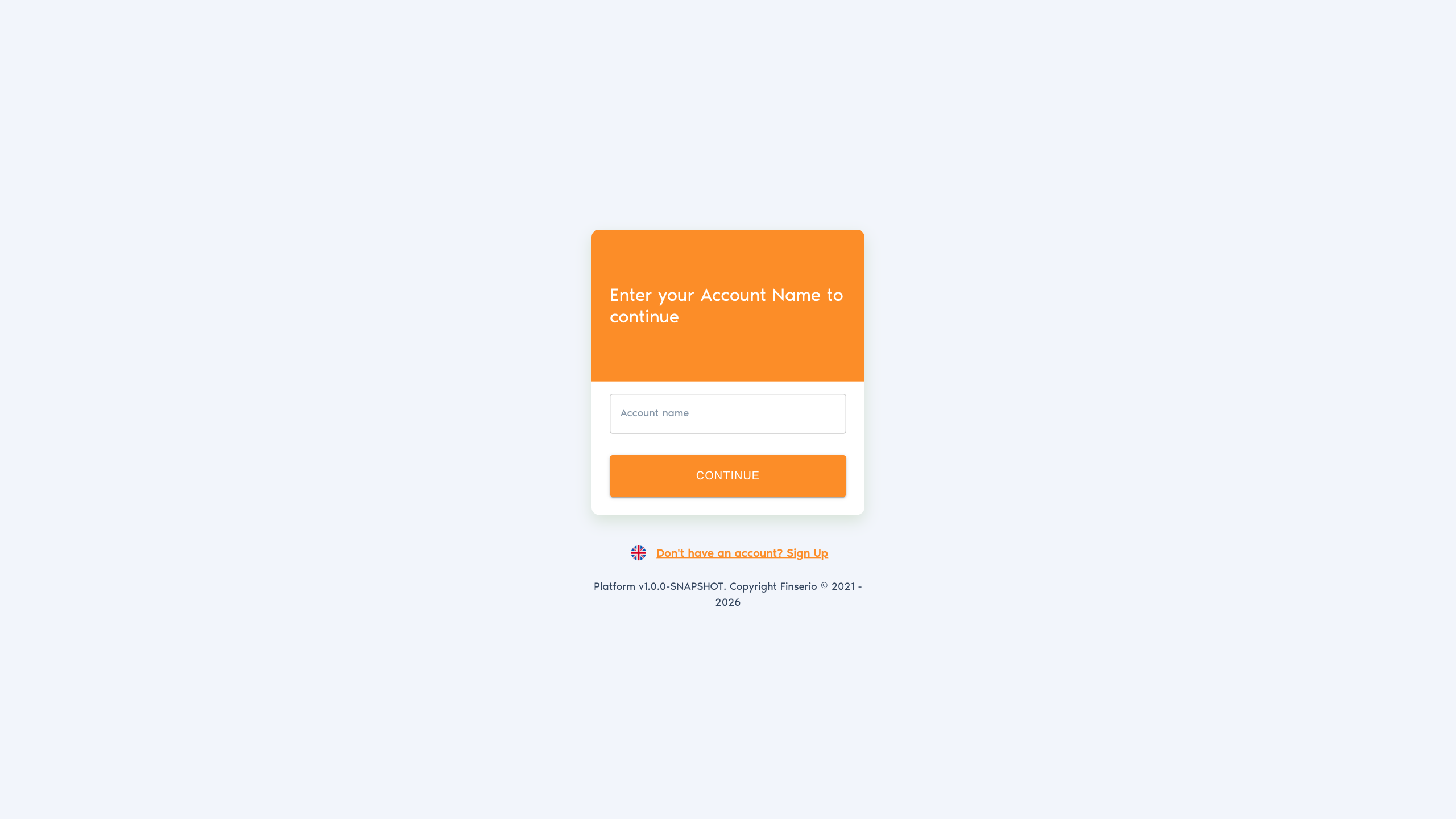
The account name is not necessarily the organisation's displayed legal name. If Finsaku reports that the organisation does not exist, check the exact account name and the Finsaku address before retrying.
Check a new account
After your first successful sign-in, open the profile menu from your avatar in the header and select View Profile. Check:
| Profile value | What to confirm |
|---|---|
| Login | The email or identifier used for this account. It is displayed but cannot be changed in the profile editor. |
| Affiliation | The intermediary or organisation associated with the account, when used. Selecting its name opens the affiliation record. |
| Groups | Permission groups that supply the account's access. |
| User locale | The language and regional formatting used by the account. Only tenant-supported languages are available. |
| History | Actions recorded for your account. |
If navigation is missing, ask an administrator to check the account status, group membership, group status, permissions, affiliation, and the saved query that supplies the list. Editing profile details does not add access.
Edit your profile
- Open the avatar menu and select View Profile.
- Select Edit.
- Update the available personal details, avatar, or User locale.
- Save and confirm that the profile view shows the new values.
Changing your locale changes supported interface wording and formatting. It does not translate unmaintained product fields, lookup values, templates, or free text, and it does not change stored business dates or currencies.
Change your password
Password change is available for a password-based Finsaku account.
- Open View Profile and select Password.
- Enter Current user Password.
- Enter New user Password and Confirm user password.
- Save and wait for the success message.
The new password must contain at least eight characters, including a lowercase letter, uppercase letter, number, and symbol. If an external identity provider manages your sign-in, follow that provider's password process instead.
Open your affiliation
When the avatar menu shows an affiliation name, select it to open the associated organisation record. This is a read-only view from the profile menu; it does not switch the account to a different affiliation.
Affiliation can affect partner-restricted lists and record visibility. Report an incorrect affiliation to an administrator rather than working around it with a different search or export.
Log out
Open the avatar menu and select Logout. Wait for the sign-out flow to complete before closing a shared browser. Closing one Finsaku tab is not a substitute for logging out.
If access does not work
| Symptom | Check |
|---|---|
| Account name is rejected | Exact account name, Finsaku address, and whether the organisation is active. |
| Email or password is rejected | Email spelling, keyboard state, current password, and whether the account is blocked. |
| Sign-in redirects elsewhere | The organisation may use an external identity provider; complete that provider's flow. |
| A menu or button is missing | Account status, permission-group membership and status, required permission, product configuration, and affiliation visibility. |
| The wrong language appears | User locale, tenant-supported languages, and whether the affected content has a translation. |
Administrators can use Users, Permission groups, and Access model and troubleshooting to investigate access.