Configure access for a new user
- Time
- 20–30 minutes
- You need
- User, group, saved-query, and impersonation administration permissions, a selectable lending product, and a tenant using password-based users.
- Result
- Two active users and role groups, with each user’s permitted actions and access limits checked.
Create the two permission groups
Check that matching groups and users do not already exist. This scenario separates application entry from lending: Maya Collins can create, update, and submit applications; Daniel Reed can approve and lend them.
Open Administration → Add Group for each role. Enter the Name, add the starting permissions below, and select Add.
| Group | Task-level permissions | Do not add |
|---|---|---|
| Customer service representative | Find Persons, Find All Persons, Read Person, Init Quote, Save Quote, Read Quote, Find Quote, Generate Payment Schedule, Submit Quote, and List Internal Queries | Approve Quote, Reject Quote, Lend Quote |
| Loan officer | The customer-service set plus Approve Quote and Lend Quote | Broad payment, export, user-administration, group-administration, or impersonation permissions unless the job requires them |
The permission catalogue uses Quote for a loan application. These are task-focused starting sets, not a universal security policy. Use the task-based permission recipes for the detailed catalogue and optional document, note, message, assignment, label, and history permissions.
Use the permission search to transfer related permissions together:
- filter by Person, select Find Persons, Find All Persons, and Read Person, then transfer the selected set;
- filter by Quote and select the required application permissions for the role before transferring them;
- filter by Payment Schedule to add Generate Payment Schedule;
- filter by Internal Queries to add List Internal Queries.
For Customer service representative, leave Approve Quote, Reject Quote, and Lend Quote in the available list. For Loan officer, include Approve Quote and Lend Quote, but leave Reject Quote unselected.
Permission names alone do not make the Workspace entry points visible:
- Open the internal saved query used to list applications and confirm its Location, visibility, and required permission.
- Ensure both groups have that query's required permission as well as List Internal Queries.
- Confirm the selected product is active and available from New Application.
- If an affiliation restricts visibility, configure and check that scope separately.
Create Maya Collins and Daniel Reed
Open Administration → Add User and create the following accounts. Use secure temporary passwords and do not include them in screenshots or documentation.
| User | Login | Group |
|---|---|---|
| Maya Collins | maya.collins@finsaku.com |
Customer service representative |
| Daniel Reed | daniel.reed@finsaku.com |
Loan officer |
For each account:
- enter the person's identity and unique Email;
- select an Affiliation only when the scenario requires partner-restricted access;
- select the intended Group; this connects the account to that reusable permission set;
- enter User password and Confirm user password;
- select Add, then reopen the user and confirm Status, Groups, and User locale.
Assign more than one group only when the person performs several roles and needs the combined permissions. An additional group broadens effective access; it does not override or subtract permissions from the other assigned groups.
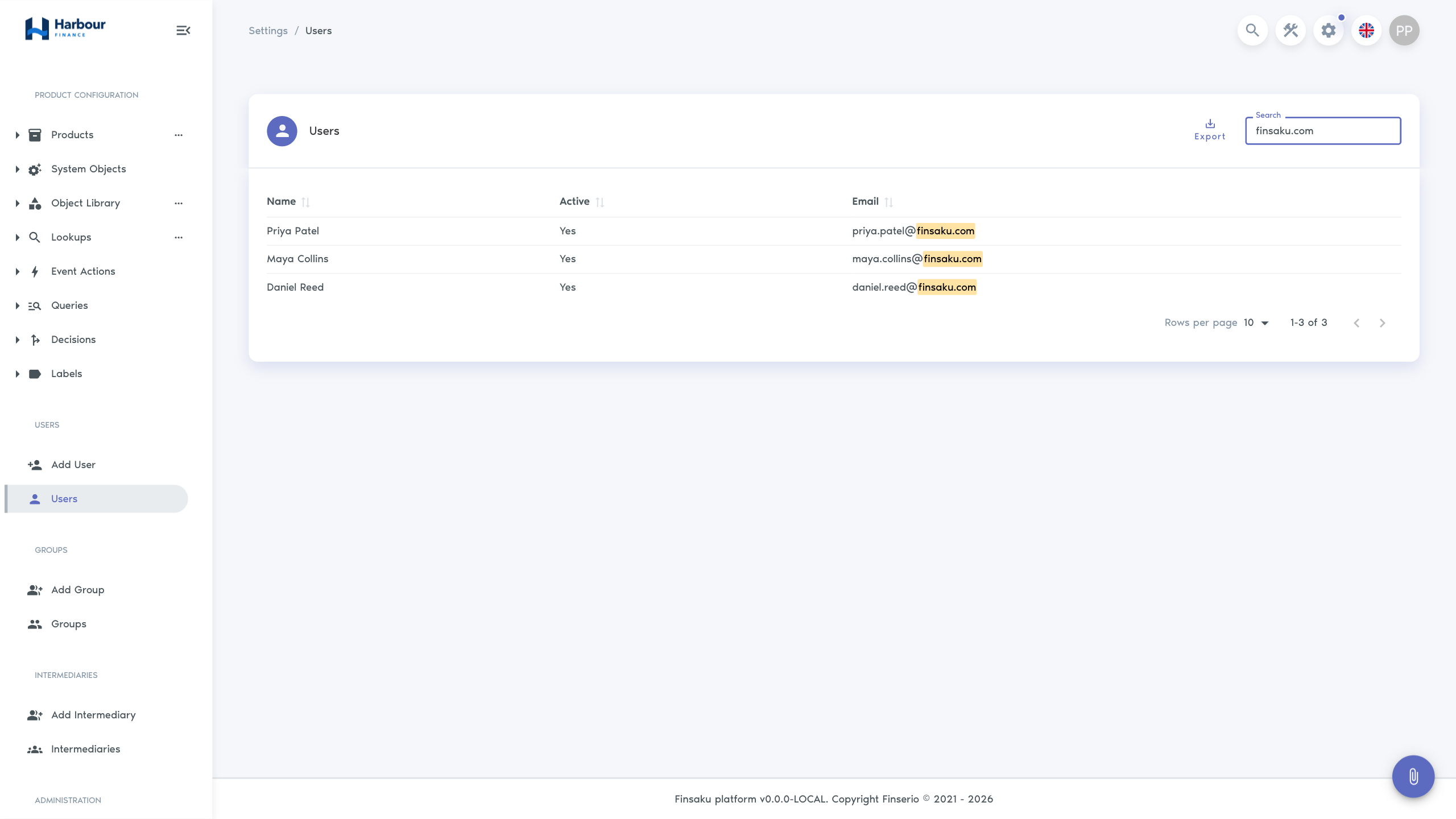
Use one account per individual. Users covers password rules, status, affiliation, and external identity-provider boundaries.
Observe Maya's application-entry boundary
The video verifies each account in a separate signed-in browser session. Use Impersonate when it succeeds in your environment; direct sign-in is the documented fallback when impersonation returns an authentication error.
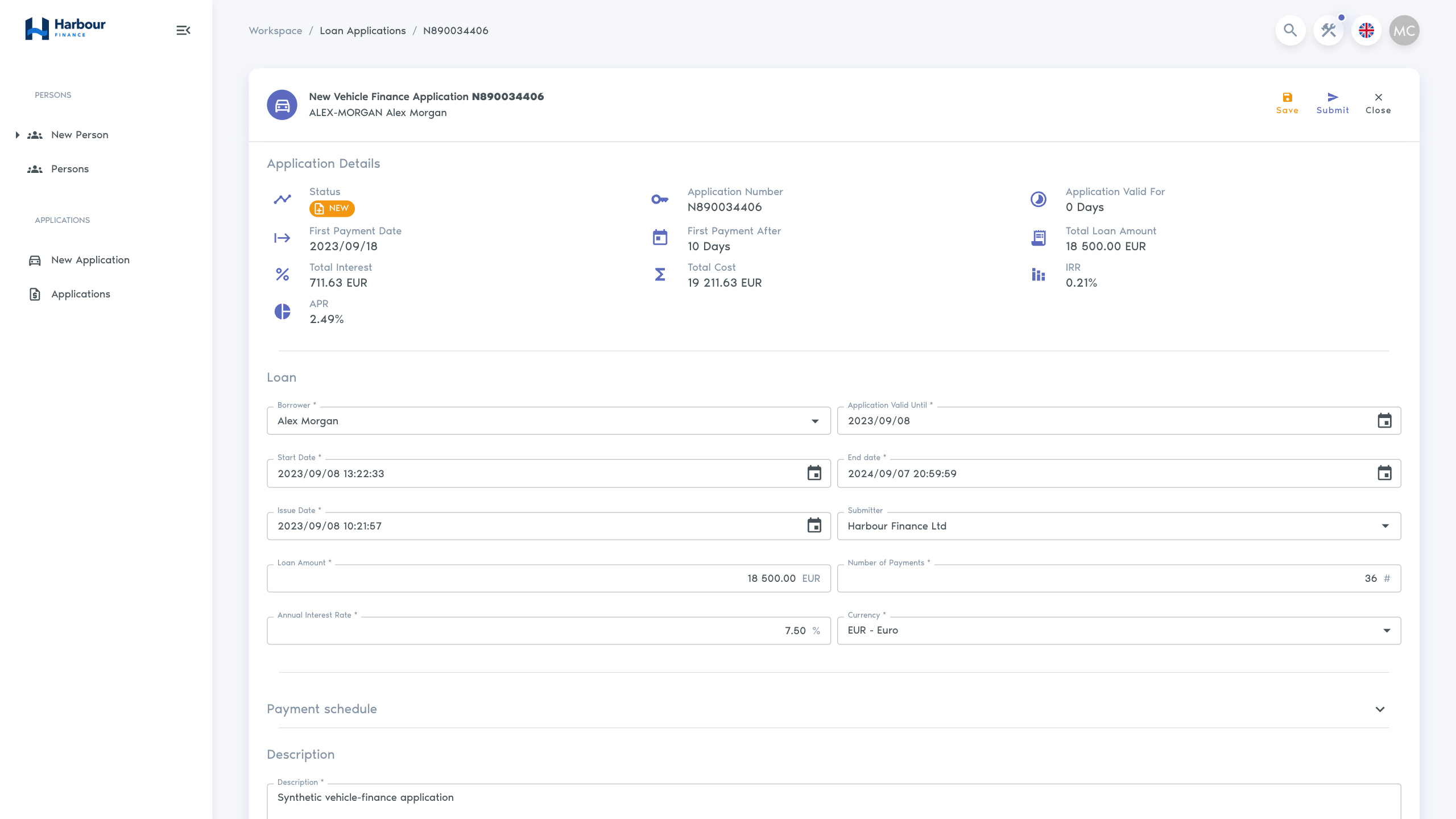
Open Maya Collins and select Impersonate.
- Open Workspace → New Application, select the configured product and borrower, enter valid requested terms, and wait for the schedule to update.
- Save or submit the application according to the configured workflow. Maya should be able to reopen and update it while that status permits editing.
- Open the resulting application and inspect its actions. Approve and Lend must not be available to Maya.
- Select Exit impersonation in the header to return to the administrator session.
Observe Daniel's approval and lending boundary
Open Daniel Reed and select Impersonate.
- Find Maya's application from the configured application list and open it.
- Review the application and use Approve when its status and configured workflow permit that action. Approval records the decision; it does not create a loan.
- Confirm that Lend becomes available after approval. Do not select it during this access check, because Lend changes the application to Issued and creates the loan and contract.
- Select Exit impersonation.
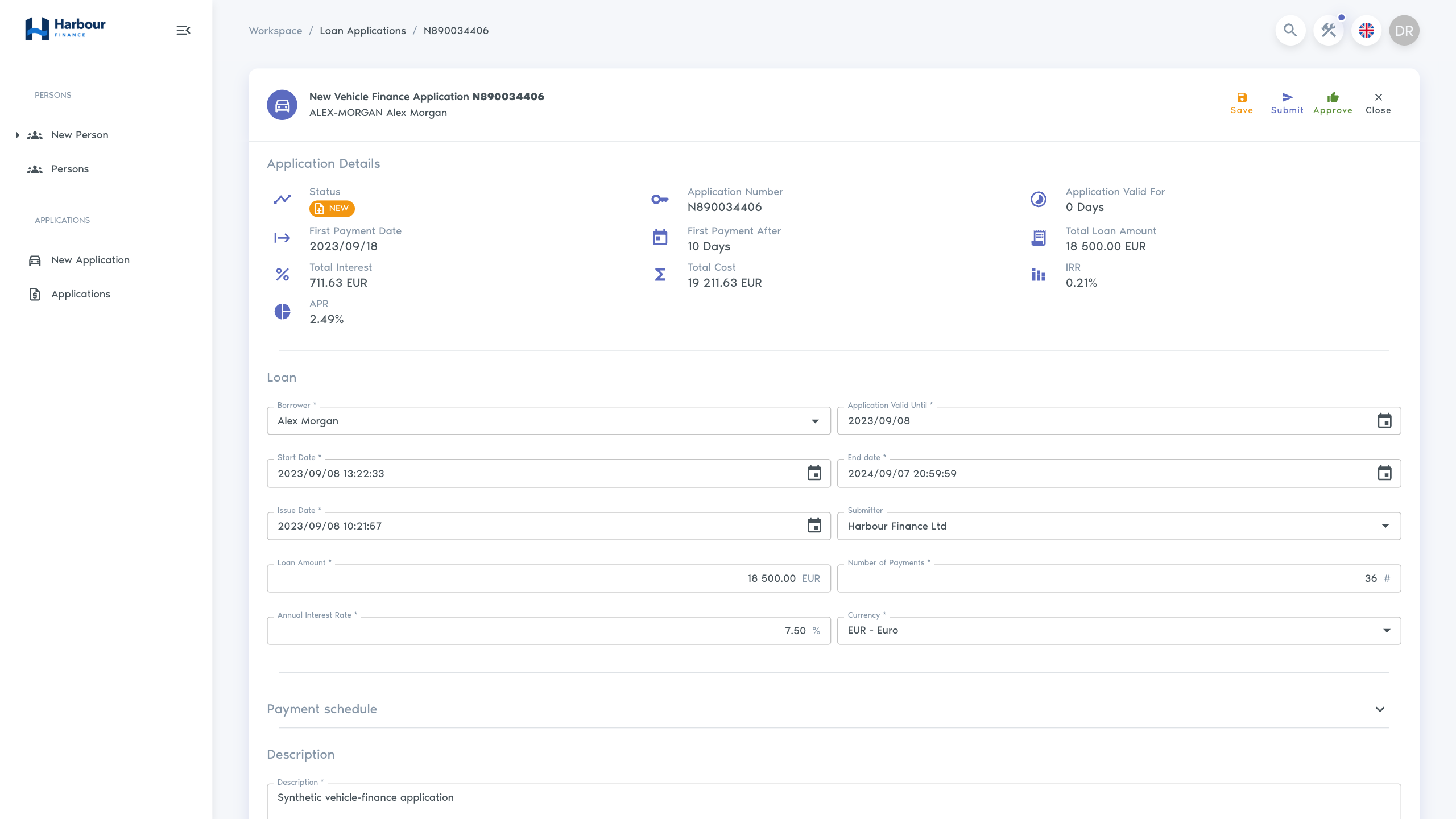
The positive and negative observations above establish effective access. A saved permission group by itself does not.
Troubleshooting
| What you see | Check |
|---|---|
| A user cannot find the application list | The saved query's location, visibility, required permission, and the user's List Internal Queries permission. |
| The application is absent from a visible list | Saved-query conditions, product, status, affiliation, and partner scope. |
| An expected action is absent | Exact Quote operation permission, application status, required data, and configured decisions. |
| Authentication error appears during impersonation | Return to the original Finsaku tab or use the browser's Back action. If the administrator header is available, select Exit impersonation; otherwise open the normal Finsaku sign-in page and sign in again as the administrator before continuing. Do not assume impersonation succeeded. |
| Impersonation remains unreliable | Exit or re-establish the administrator session, then use a separate browser session to sign in directly as the user. Sign out before switching identities and do not share credentials between users. |
| A user can do too much | Every active direct group and intermediary-supplied group, not only the group created here. |
Use Access model and troubleshooting to trace user status, group status, permissions, saved queries, and affiliation scope in order.