Labels
Labels classify people, loan applications, and loans. Administrators set each label's displayed name, translation, colour, and order. Users with permission attach or remove saved label assignments. Label conditions display labels dynamically when a rule matches the data shown on a supported record page.
- For
- Administrators defining reusable record classifications.
- Requires
- Label or label-condition permissions for the task below, and an agreed meaning, owner, wording, and translations.
- Available when
- The relevant person, application, or loan view exposes labels.
- Before you begin
- Check saved queries, decisions, integrations, procedures, and existing records that may use the label.
- Expected result
- The label is recognisable on representative records and does not replace or imply a lifecycle status.
Use labels for classification
Use a label for a review category, operational segment, or integration-maintained classification. A configured politically exposed person integration applies its selected label when the result matches.
Labels are not lifecycle states. Do not use a label such as “Approved” instead of the application approval action, and do not assume that removing a label reverses the process that originally applied it.
Create or edit labels
- Open Administration → Labels → Labels.
- Add a label row or edit an existing row.
- Choose its Color and enter the Label wording and translations.
- Reorder labels when a consistent display order helps users.
- Select Save to persist the complete collection.
- Open a representative person, application, or loan and confirm that the label is recognisable in context.
Adding, editing, removing, and reordering rows changes the current form first. The collection is not persisted until Save succeeds. Labels do not have a separate durable key, so names must still remain unambiguous to users and configuration owners.
Saved assignments and dynamic labels
A saved assignment attaches a label to a particular person, application, or loan. A user or configured process creates or removes that assignment. A label condition instead evaluates the data available on the current page and displays its selected label while the condition matches. It does not save an assignment, change a lifecycle status, or run an application operation.
Dynamic labels can change as values change in an edit form, before the record is saved. They do not prove that the edited values have been persisted. A dynamic match also does not create a label-placement history entry or populate saved assignments used by queries or integrations.
All matching rules contribute labels. If several rules select the same label, or it is both saved and dynamic, the page displays it once. Removing a saved assignment does not hide a label while a condition still matches. Disabling a condition does not remove a saved assignment.
Person labels shown beside an application or loan are evaluated against that person's data. They are separate from labels evaluated against the application or loan itself.
Permissions
Configure these permissions in permission groups. Users also need access to the underlying person, application, or loan.
| Task | Permissions |
|---|---|
| Open the label catalogue | List Labels. |
| Create, edit, reorder, or delete label definitions | List Labels and Save Labels. |
| Open Label Conditions and see matching dynamic labels on supported pages | View Label Conditions. This also allows the user to read the rule definitions. |
| Add, edit, disable, or delete conditions | View Label Conditions and Save Label Conditions. |
| See saved label assignments | View Labels, under Label Associations. |
| Place or remove saved assignments | Place Label and Remove Label, respectively, with View Labels for the record's label controls. |
View Labels does not grant visibility of dynamic labels, and View Label Conditions does not grant visibility of saved assignments. To see both, a user needs both permissions. Saving label definitions and saving label conditions are also separate permissions.
Configure label conditions
Create and save the label in Labels first. Agree which data should make it appear, including what should happen when a value is missing.
- Open Administration → Labels → Label Conditions.
- Select Add Label Condition.
- Choose the existing Label and its Reference table.
- Enter the rule in Condition as a JSON Logic expression. Replace the prefilled example with the intended rule; this editor accepts JSON text, not the visual condition builder used by decisions.
- Check Enabled, which is on for a new condition. Turn it off if the rule should be saved without being used yet.
- Select Done. The rule is saved immediately and appears in the table; there is no additional collection-level Save.
- Reload a matching record page and a non-matching record page as a user with View Label Conditions. Check missing values too, and confirm that any saved assignment is not hiding the distinction.
| Field | Meaning |
|---|---|
| Label | The saved label definition to display, including its wording, translations, and colour. |
| Reference table | The type of data evaluated by the rule. Use Persons for people or organisations, or Quotes for loan applications. |
| Enabled | Only enabled rules contribute dynamic labels. |
| Condition | A required JSON Logic expression evaluated against the current record data. A matching result displays the label. |
| Order | Available when editing an existing rule. New rules are added at the end. This orders the condition list; it does not make evaluation stop at the first match or override the label catalogue's display order. |
The current editor does not offer a loan reference table. The shared Policies option does not target Finsaku loans. Use Persons for borrower labels shown beside a loan; do not configure Policies expecting it to evaluate loan data.
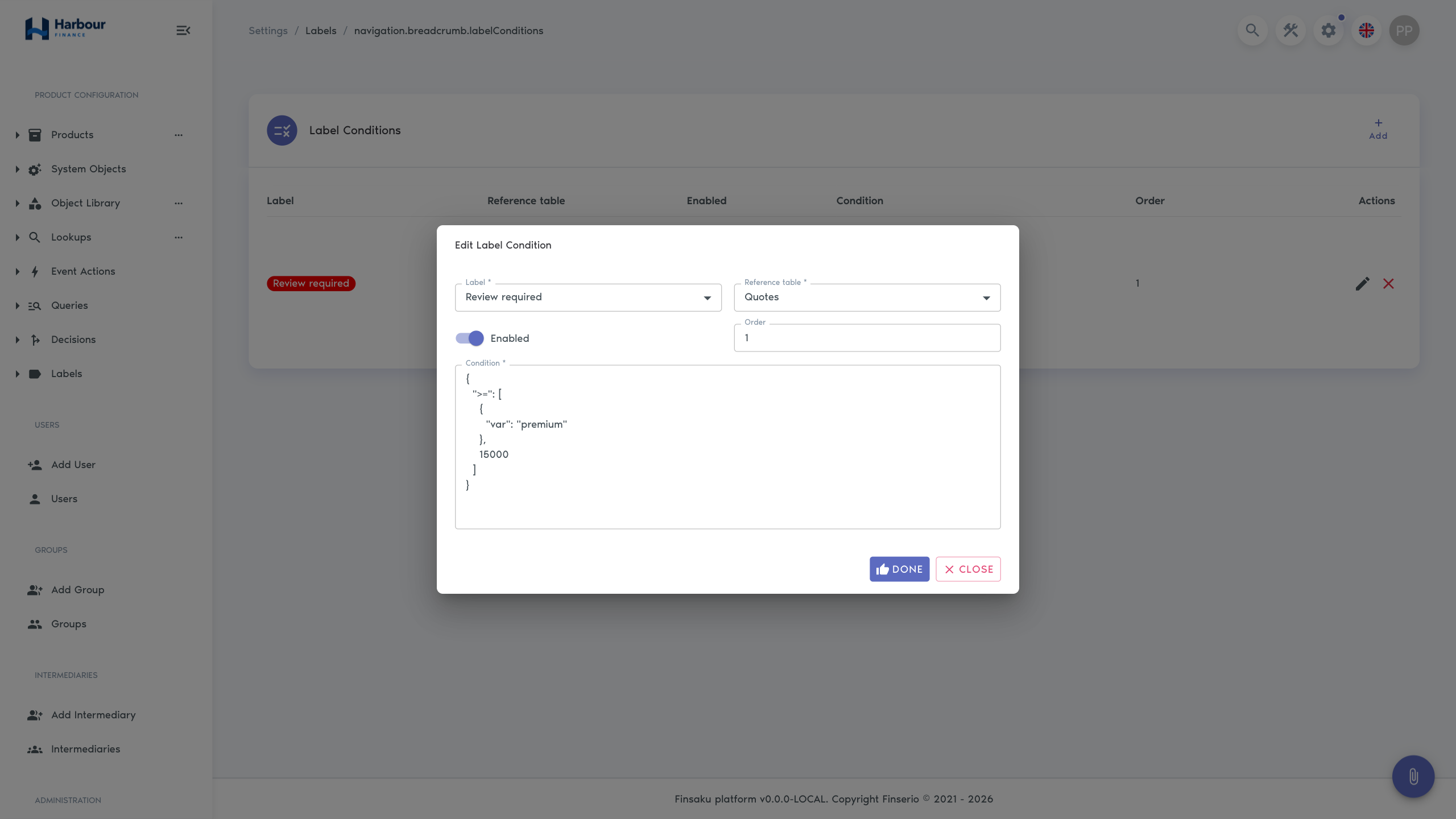
Write and check an expression
The dialog's prefilled example checks whether the application's borrower has a PEP enrichment value of true:
{
  "==": [
    { "var": "contractee.enrichmentObjects.pep.object.isPep" },
    true
  ]
}
var reads a value from the current record and == compares it with the second value. For this application example, contractee is the borrower. A Persons rule starts at the person itself, so the corresponding path is enrichmentObjects.pep.object.isPep.
Use this expression only where the matching enrichment structure exists in the displayed data. It reads a result already available to the page; it does not request a PEP check or save the integration's label assignment. A missing or unavailable result does not establish a negative PEP result. See Credit reports and enrichments.
Check the exact field path, value type, and available data for each reference table. Valid JSON alone does not prove that a rule will match the intended records. An expression that fails during evaluation contributes no dynamic label. After changing a rule, reload the record page to fetch the updated conditions.
Edit, disable, or delete a condition
Use the row's Edit action, change its settings, and select Done to save. To stop using a rule while retaining its definition, turn off Enabled and select Done. Reload representative pages to check the result.
The row's Delete action removes the condition immediately, without a separate confirmation or Save. Deleting a condition leaves the label definition and its saved assignments in place. Another matching condition can still display the same label.
Define and review labels
- give each label one documented meaning and owner;
- use translations that preserve the same meaning;
- choose colours for recognition, not as the only source of meaning;
- avoid two labels that differ only slightly;
- define whether users, decisions, an integration, or display conditions maintain the label's presence.
Before renaming or deleting a label, check saved queries, decisions, user procedures, and integrations. Historical enrichment results can remain even if the current label is later removed.
Automation and integration use
A decision or configured workflow can add or remove a label. The politically exposed person integration can maintain a selected label when a provider result matches. In either case, the label is the visible classification; the decision result or dated enrichment remains the evidence behind it.
Before changing a label used by automation:
- identify the responsible decision, query, or integration;
- confirm whether its selection follows the label record or relies on displayed wording;
- test both the matching and non-matching case;
- confirm that a later result removes or retains the label as intended;
- keep historical provider results even if the current label changes.
Delete or retire a label
Removing a row and saving removes that label from the maintained collection. First check people, applications, loans, label conditions, saved queries, decisions, integration settings, and operating procedures that refer to it.
When earlier classification must remain explainable, prefer an agreed retirement procedure over silently replacing the label's meaning or colour. Colour is a cue, not evidence or status.
Troubleshooting
| Symptom | Check |
|---|---|
| A row change disappeared | The collection was saved after editing. |
| Label is unavailable on a record | View Labels for saved assignments, View Label Conditions for dynamic labels, supported record type, and tenant configuration. |
| Label Conditions or its editing actions are missing | View Label Conditions opens the page; Save Label Conditions enables add, edit, and delete. |
| A dynamic label does not appear | The rule is enabled, its label still exists, the reference table and field path match the displayed data, and the expression evaluates successfully. Reload after changing the rule. |
| A label appears during editing but disappears after reloading | The condition matched unsaved form values. Check the saved record values. |
| Automated label is not applied | Enabled integration or decision, its condition, selected label, provider result, and execution history. |
| Label remains or returns after removal | A condition still matches, another rule selects the same label, or a decision, enrichment, or other configured process applies a saved assignment again. |
| Users confuse labels with status | Rename the label and update the procedure so the formal application or loan action remains clear. |