Navigate Finsaku
Finsaku uses a header for global controls, a left menu for the current working area, and breadcrumbs for the open record or configuration page.
- For
- All signed-in Finsaku users.
- Requires
- An active account and permission to at least one Workspace or Administration area.
- Available when
- Your tenant configuration, saved queries, and permissions expose the relevant controls.
- Before you begin
- Identify the record or configuration area you need; missing navigation can be an access or query issue.
- Expected result
- You can move between areas, search permitted records, open lists and records, and manage your session.
Header controls
| Control | What it does |
|---|---|
| Menu | Collapses or expands the left navigation. |
| Breadcrumbs | Shows the current location and links back to parent pages where available. |
| Global search | Finds configured record types by values such as name, code, application number, or loan number. |
| Workspace | Opens the day-to-day lending area. |
| Admin Area | The header cog opens Administration when you have an applicable administration permission. |
| Language | Changes the interface language when more than one language is configured. |
| Profile | Opens your profile, affiliation details where present, and Logout. |
An authorised administrator who is viewing Finsaku as another user also sees a control for leaving impersonation.
Open General Settings
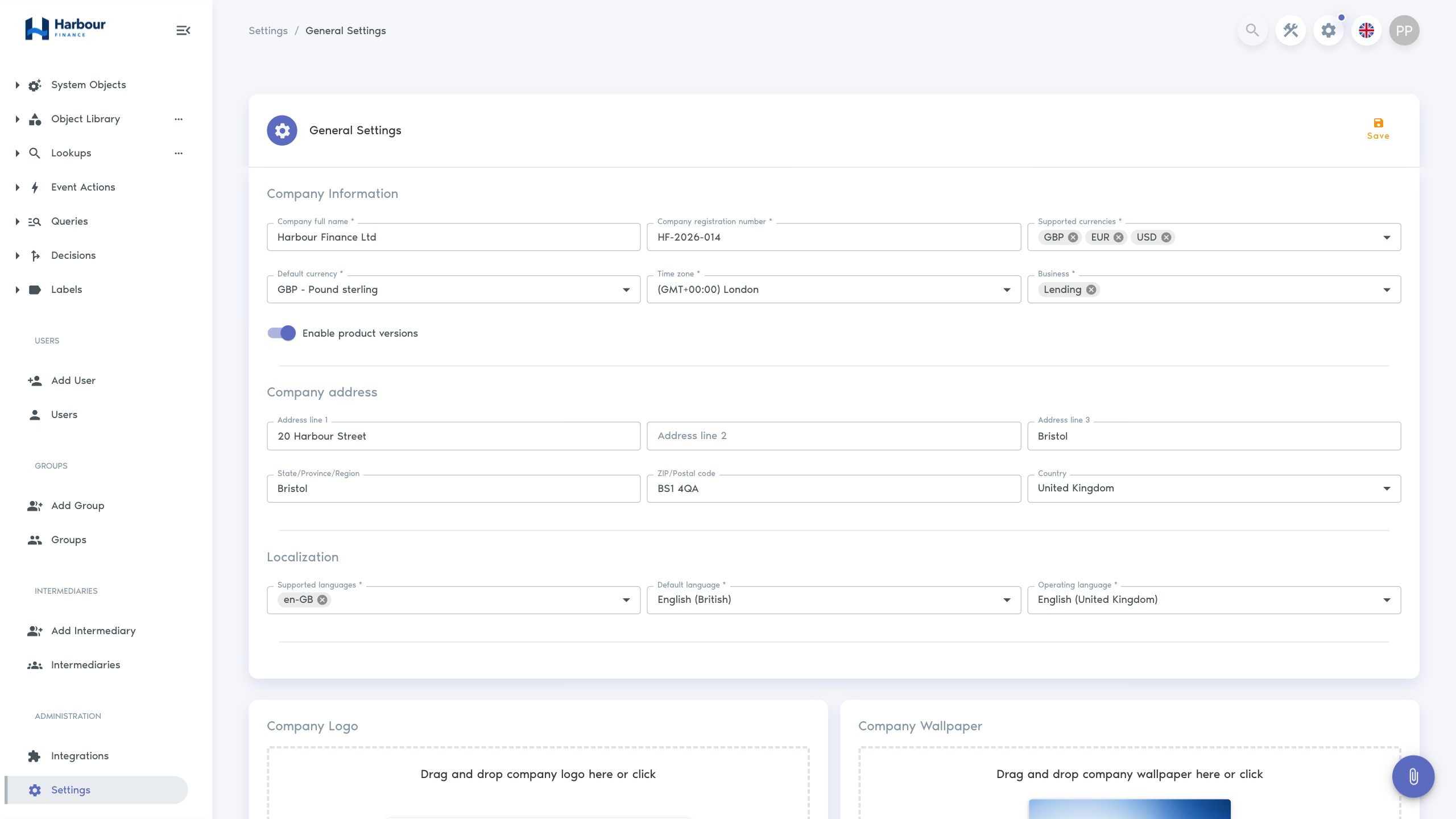
The help site's Administration area corresponds to the header cog whose tooltip is Admin Area. The left-menu entry Settings opens the page titled General Settings.
- Select the header cog labelled Admin Area.
- In the left menu, scroll to Administration and select Settings.
- Confirm that the page title is General Settings before changing tenant-wide settings.
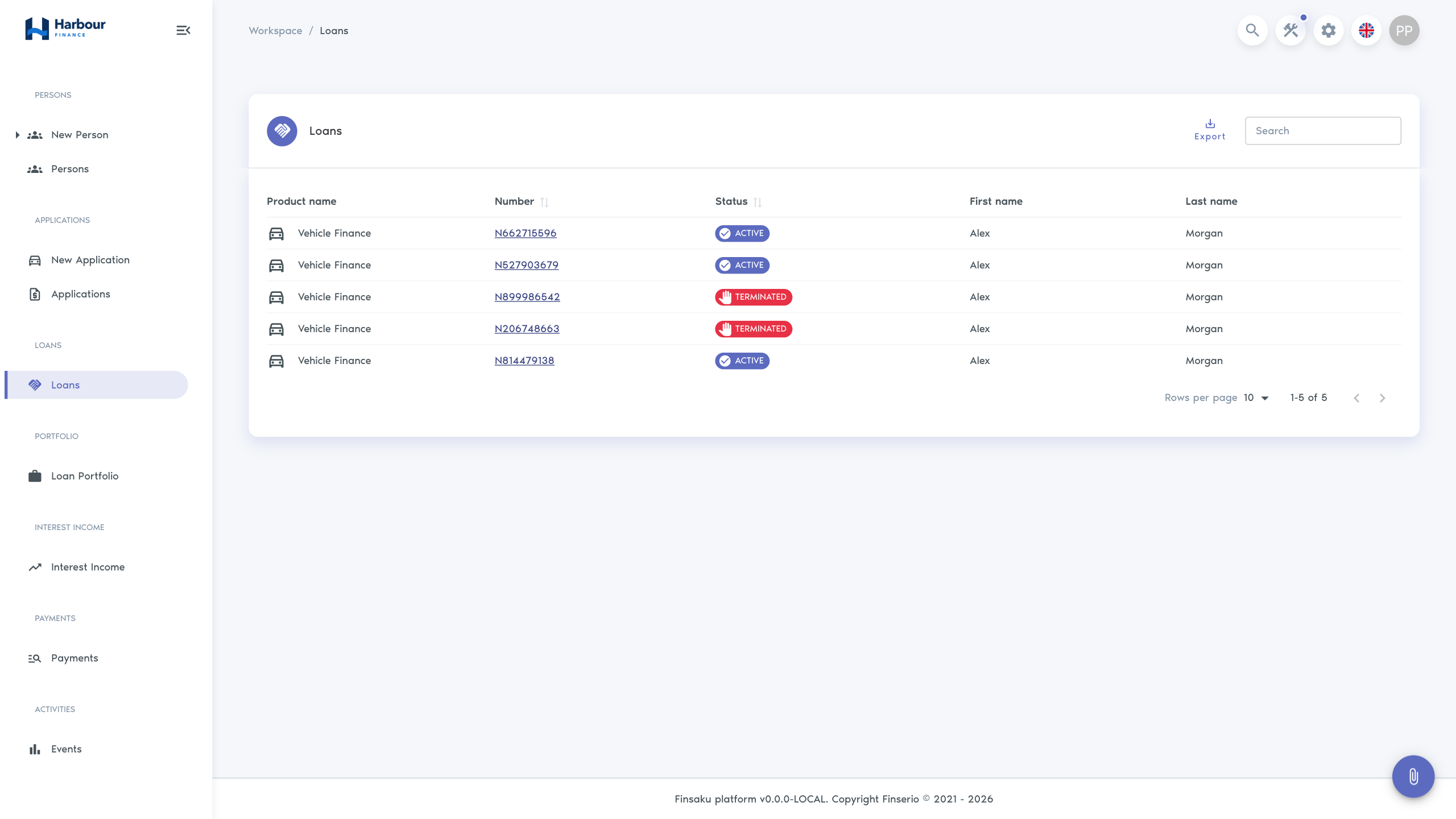
Workspace navigation
Workspace menu entries come from your permissions, the tenant's lending configuration, and saved queries placed in the menu. Depending on that configuration, Workspace contains some or all of these areas:
| Area | Purpose |
|---|---|
| Persons | Create people or organisations and open configured person lists. |
| Applications | Start an application and open configured application lists. |
| Loans | Open configured lists of active or historical loans. |
| Portfolio | Review loan balances and measures as at a selected date. |
| Interest Income | Review interest figures for a selected period. |
| Payments | Find payments across loans. |
| Activities | Review recorded platform events when you have access. |
If only one lending product is available, New Application can open it directly. With several products or product groups, select the required product from the expanded menu.
Global search
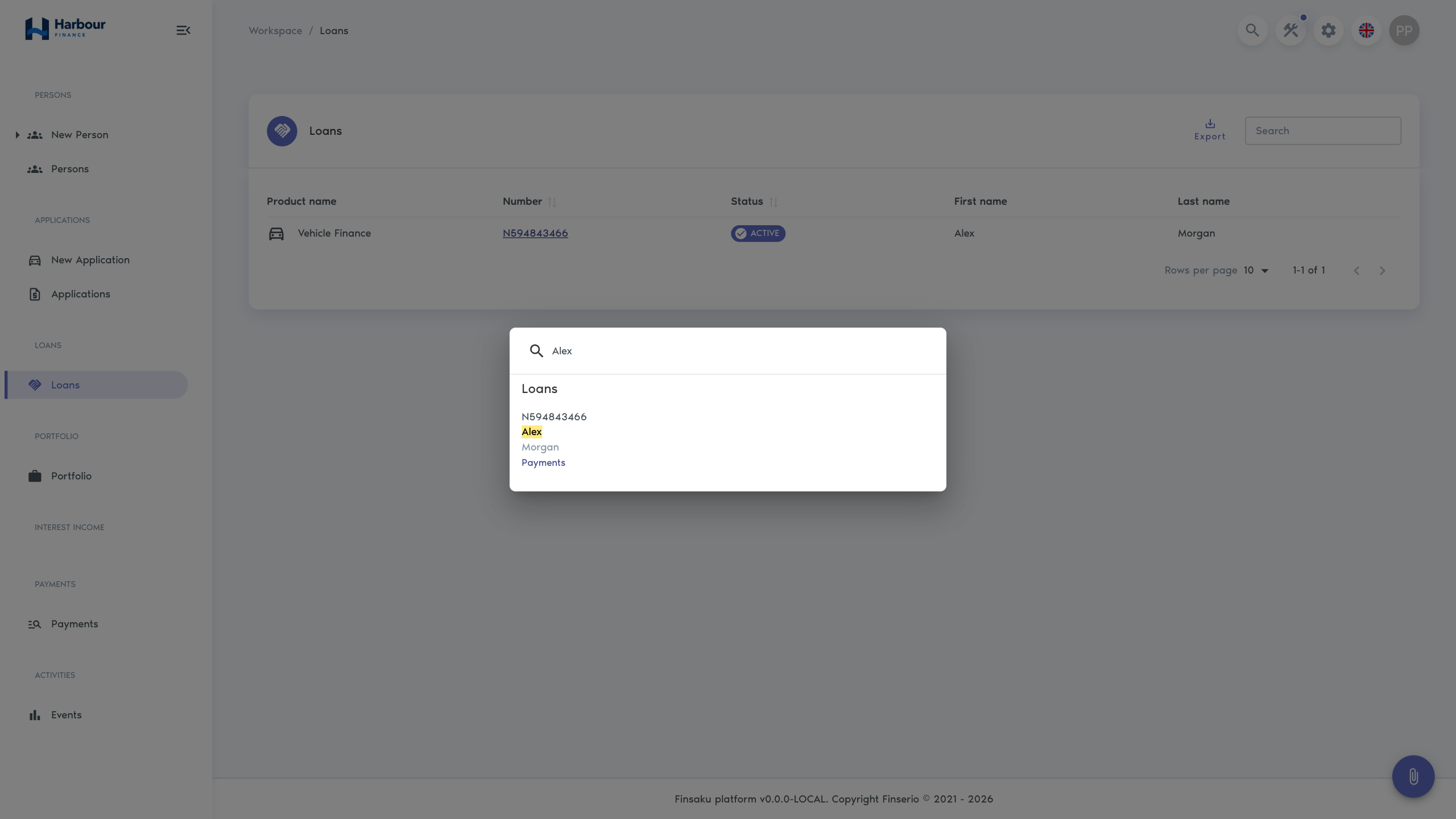
- Select the magnifying-glass control, or press Ctrl+K on Windows or Linux and Command+K on macOS.
- Enter a meaningful part of a name, code, application number, or loan number.
- Select a result from the preview, or select See all to open the complete configured list.
Search covers only record types linked to a saved query that is visible in Global Search. It does not bypass permissions or affiliation restrictions. If the search control or an expected result is missing, ask an administrator to check the query location, permission, and visibility rules.
Lists and records
Saved-query configuration determines a list's columns, filters, initial sort, export availability, and whether it appears in the menu or global search. Select a row to open the corresponding record.
On a record page:
- the breadcrumb identifies the open record and its parent area;
- available buttons depend on record status, product configuration, and permissions;
- sections can contain documents, messages, notes, labels, history, enrichments, and related saved lists;
- leaving a form with changed values can prompt you to discard unsaved changes.
Profile and session
Select your avatar to open the profile menu. View Profile opens your user details and personal history. An affiliation entry opens the organisation linked to your user when one is configured. Select Logout when you have finished using Finsaku, especially on a shared device.
Use Sign in and manage your profile for first access, locale, password, and affiliation guidance. For permission, affiliation, or missing-menu problems, see Access model and troubleshooting. For details of configurable lists and filters, see Lists, search, and export.