Audit trail
Finsaku records supported business operations and configuration changes in an audit trail. An entry identifies the user or system process that recorded the event, when it happened, and the affected record when a reference is available. For changes with stored details, See Changes compares the previous and new values.
- For
- Operations managers, tenant administrators, and authorised support users investigating a recorded change or automated action.
- Requires
- The applicable record-history, recent-activity, and record-access permissions.
- Available when
- The operation is audited and the current user can open its record or activity view.
- Before you begin
- Note the record number, user or system identity, approximate time, expected event, and observed result.
- Expected result
- You identify the recorded actor, event, time, changed values, execution status, or evidence needed for escalation.
What the audit trail records
An audit entry can contain:
| Evidence | How to use it |
|---|---|
| User or system identity | Establish which signed-in user or automated process recorded the operation. |
| Event description | Identify the business operation, such as creating a person, updating an application, allocating a payment, or changing configuration. |
| Date and time | Place the event in sequence with related Finsaku and provider activity. |
| Affected record | Continue from a linked person, application, loan, user, product, or other supported record. |
| Previous and new values | Review the stored change behind an event when See Changes is available. |
Coverage includes supported events involving people, applications, loans, instalments, payments, documents, notes, users, permissions, products, tenant settings, queries, decisions, labels, and integrations. The exact history shown depends on the operation, record type, and current user's permissions.
Audit recording is event-based. Viewing a record does not normally create a business event, and one operation can change more than one stored value. Use the event description and change details together rather than treating either as the complete business context.
Choose the right audit view
| History | Where to find it | What it answers |
|---|---|---|
| Record History | Person, application, loan, payment-related record, or another record where shown | Who performed a recorded event, what happened, and when. |
| Change details | See Changes on a history row when available | Which stored values changed between the previous and new state. |
| Activities → Events | Workspace navigation, when permitted | Recent recorded activity across accessible records. |
| Profile History | Avatar menu → View Profile | Events recorded under the signed-in user's identity. |
| Enrichments history | Person or application borrower | Dated provider results and summaries. |
| Event Action Execution History | Administration → Event Actions → Execution History | Whether configured webhook, document, email, or SMS work completed or failed. |
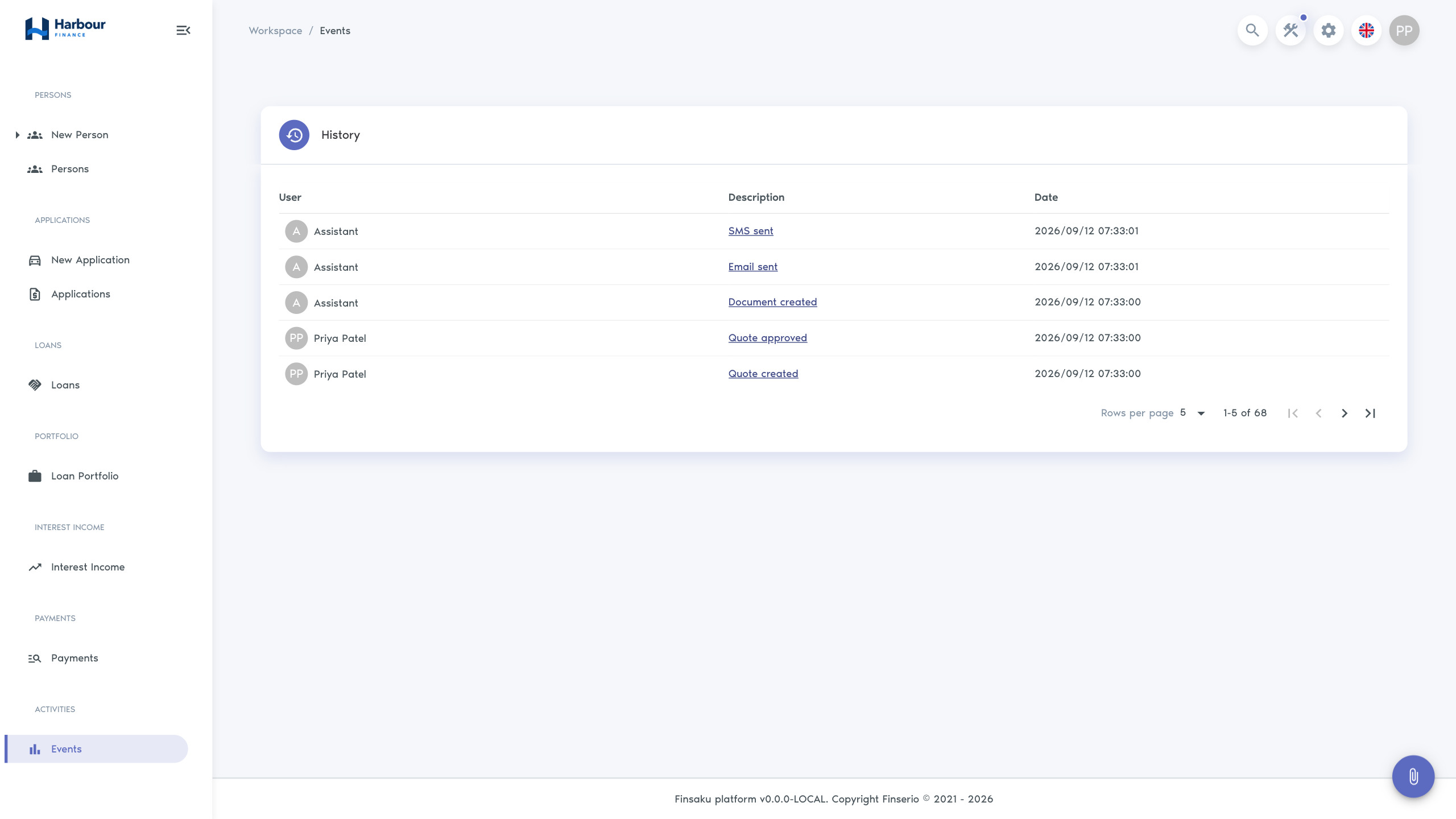
The Workspace events list contains User, Description, and Date. Select a linked description when available to open the affected record.
Control access to audit data
Audit access is separate from ordinary read and update access. In Administration → Permission Groups, grant only the history permissions required by the role:
- Read Recent Activities controls the tenant-wide Activities → Events view and access to See Changes details.
- Record-specific permissions such as List Person History, List Quote History, List Contract History, List User History, and List Product History control the corresponding history where it is exposed.
- A signed-in user can review events recorded under their own identity through profile History.
History and change details can contain customer, configuration, and operational data. Treat permission to read them as sensitive access. After changing a group, test both a history the user should see and one they should not.
Investigate a change
- Open the affected person, application, loan, payment, or other supported record.
- Check the current status and visible values.
- Open History and find the event by date and description.
- Select See Changes where shown and compare the previous and new state.
- Open a related record from the history description if the event was caused elsewhere, such as a payment affecting a loan.
- If automation was expected, continue to Event Action Execution History.
History can show a system or assistant identity when an automated process recorded the event rather than an ordinary user. Use related execution or provider evidence to identify what happened after that recorded event.
Review activity across records
Use Activities → Events when you know roughly when something happened but not which record owns it. The list is paginated and shows recent events available to the signed-in user. Follow a linked description back to its record, then confirm the current state and change details there.
This view is not a configurable business report and does not replace record-specific history. Return to the record before deciding what its current state is.
Review event-action execution
Execution History lists:
| Column | Meaning |
|---|---|
| Event Date | When the source platform event occurred. |
| Event Type | The application, loan, payment, person, user, or other event that triggered evaluation. |
| Action Type | Webhook, document generation, email notification, or SMS notification. |
| Status | Scheduled, Pending, Running, Completed, or Failed. Active rows refresh while work is still running. |
| Attempts | Number of execution attempts recorded. |
Open a row to inspect the status, action and event types, attempts, optional job ID, last error, event date, correlation key, user, and affected record references. Event details can also contain stored new-data values; handle them as sensitive operational information.
Before retrying or manually replacing a failed action, check whether the external provider received the original request. A timeout can leave Finsaku uncertain even when the provider completed the work.
What the audit trail proves
An audit row proves that Finsaku recorded the described event. It does not by itself prove that:
- an external provider accepted or delivered a request;
- a recipient read an email or SMS;
- a generated document was reviewed or signed;
- an enrichment result is current;
- a later corrective action did not change the record again.
Use provider records, generated files, payment allocation, and the current Finsaku record as the corresponding operational evidence. The audit views are not a configurable business report or a substitute for the organisation's retention, reconciliation, or regulatory evidence procedures.
If an expected event is missing
Check the record and date first, then confirm that the operation is audited and the user has both the relevant record access and history permission. For automated work, confirm that the event action was enabled, product- or tenant-scoped as intended, and matched its condition. Use Event actions for configuration and retry considerations.