Add event-driven triggers
- Time
- About 20 minutes
- You need
- Event-action permission, the agreement and approval wording, enabled document, email, and SMS providers, and an authorised user to approve a test application.
- Result
- Three enabled approval actions whose document, email, and SMS outcomes can be checked in Execution History.
Use one approval event
Open Administration → Products, select the lending product, and find Event Actions. For each of the three actions below, use:
- Event Type: Approve quote. The configuration screen uses the shared term quote for a loan application.
- Execution Condition: leave this empty so every approval can run the action. Conditions are available when an action must apply only to selected applications.
- Enabled: on when adding each action.
Using the same event starts the three independent actions from one approval.
Generate the agreement
- Select Add Event Action.
- Enter Generate approved loan agreement as the Name.
- Select Approve quote as Event Type, Generate document as Action Type, and turn on Enabled.
- Under Action Settings, select Loan agreement as Template and PDF as Output Type.
- Inspect Preview sample payload, then save the action and confirm its event, action type, output type, and enabled state in the list.
This action attaches the generated file to the application. It does not send the file to a recipient.
Send the email with the agreement
- Add another event action named Email application approval.
- Select Approve quote, Email notification, and turn on Enabled.
- In Preview sample payload, drag the borrower email field into To, then choose the enabled email Provider.
- Enter the fixed Subject and Message wording. Drag the application number into the subject, then drag the borrower first name and application number into the message.
- Confirm the resolved email address, subject, and message shown beneath the dynamic fields.
- Under Generate and Attach, select Loan agreement, save, and review the enabled configuration.
Generate and Attach creates a fresh agreement for this email from the approval event's application data. It is independent from the separate Generate document action, so the email does not wait for or reuse that action's file.
Send the SMS
- Add a third event action named SMS application approval.
- Select Approve quote, SMS notification, and turn on Enabled.
- In Preview sample payload, drag the borrower mobile field into To, then choose the enabled SMS Provider.
- Enter the fixed message wording. Drag the borrower first name and application number into the message, then check the resolved text and character guide.
- Save and review the enabled configuration.
Observe the first approval
Use a synthetic application with a safe email address and mobile phone number, and an authorised user to approve it. Approval starts the enabled document-generation and message actions.
Each action runs independently. One action can complete while another fails, so check the history for each action.
Open a fresh synthetic application and confirm that its Loan Documents, Email, and SMS sections are empty. Approve the application once. Wait for it to show Approved, then open Administration → Event Actions → Execution History.
Identify the three entries by their time, Event Type, and Action Type. Each action moves through Scheduled, Pending, or Running before reaching Completed or Failed. Wait until all three reach Completed. Open an entry only when you need its attempts, source event, or affected references for investigation.
Return to the application only after all three entries show Completed. It should now contain one new agreement under Loan Documents, one recorded approval email with its attachment, and one recorded approval SMS. Completed confirms that the Finsaku action finished. For email and SMS, use provider evidence when delivery or final recipient status matters.
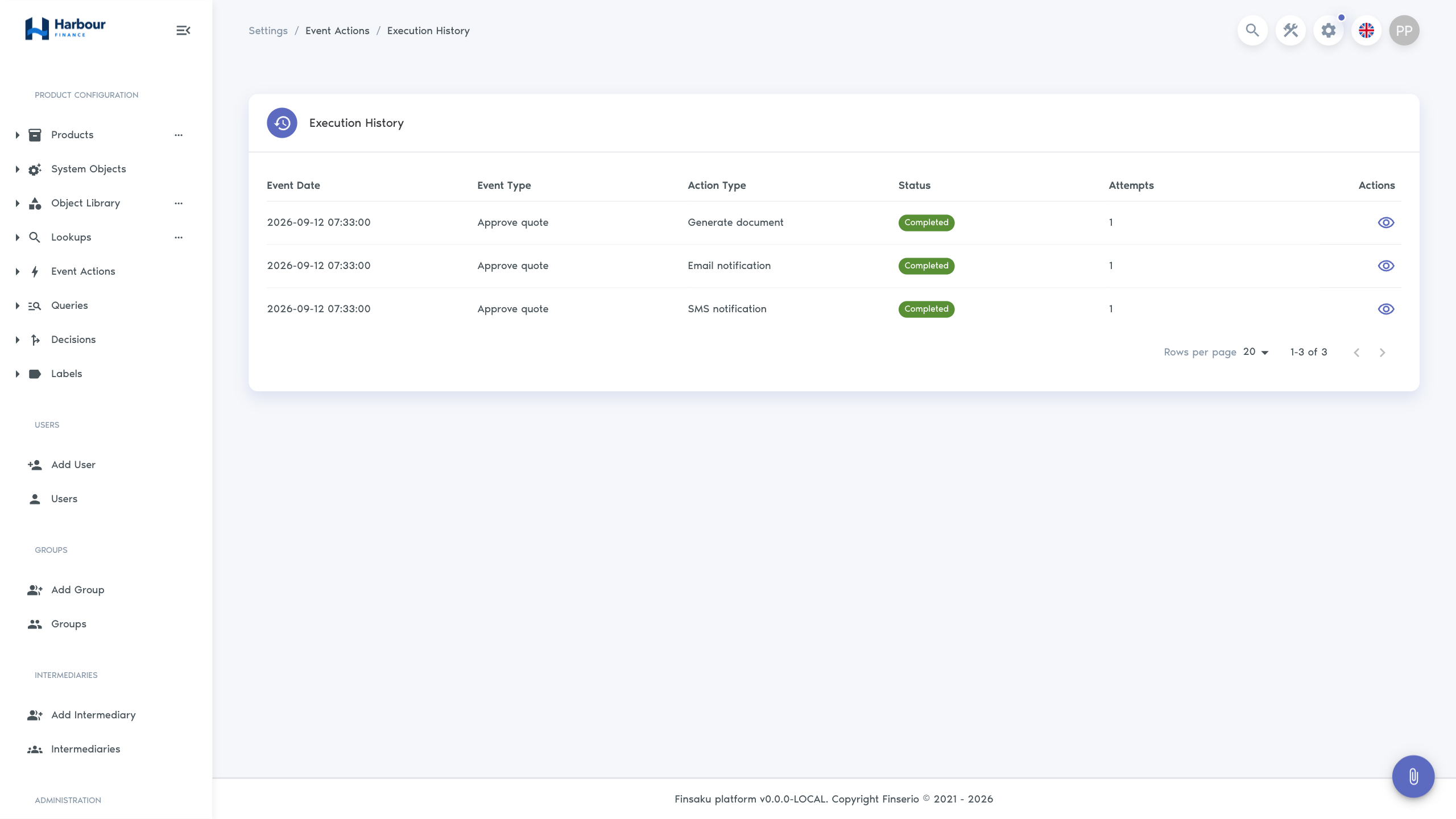
Failures and retries
Finsaku schedules up to three automatic retries after a processing failure. The Attempts value increases as the action runs again. Do not approve another application or create a duplicate event action while an entry is Scheduled, Pending, or Running.
When an entry remains Failed after retries:
- open it and record the Last Error, event, action type, and affected reference;
- check whether the provider received the request before repeating anything;
- correct the integration, recipient, template, or condition that caused the failure;
- use a new qualifying event only when the organisation's recovery procedure confirms that another document or message will not create a duplicate.
The current interface shows retry progress and attempts in Execution History; it does not provide a manual Retry button for a failed event action.
Use Event actions for all action types and Activity and audit history for investigation guidance.